RFI Feature
What's the RFI feature?
A RFI - Request For Information - is a feature that allows users to develop surveys using questionnaires in order to obtain more information about the suppliers before starting the negotiation.
All functionality of surveys and questionnaires are provided for the application Survey. This will require a Survey application instaled and configured properly and integration between RFx and Survey applications.
Overview
The RFI feature is only available for strategic processes.
The RFI feature is starts in the Request pahse. At this moment the user can choose if wants to use this feature.
Once user chooses to use the RFI feature, strategic processes will have three more phases: Create RFI, Receiving RFI and Evaluate RFI.
This phases will take place before Quotation Parameters phase.
Initial Configuration
Data Contract Configuration
The RFI feature is integrated with Survey application.
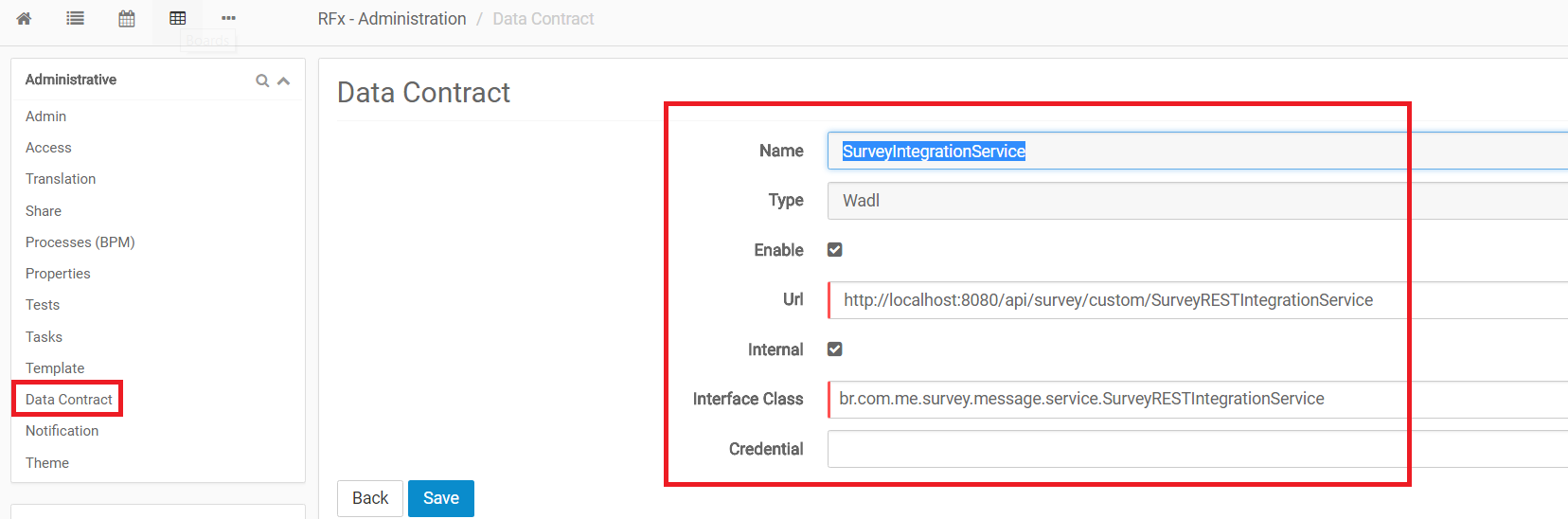
Is mandatory configure de data contract for service SurveyIntegrationService. This information allow the integration beween the RFx and Survey aplication.
The Data Contract is configured in Administrative area of RFx application.
Creating a RFI in RFx
In other words, the application is prepared to enable RFI feature to the sourcing type: Strategic and Global Strategic.
Create a process with RFI
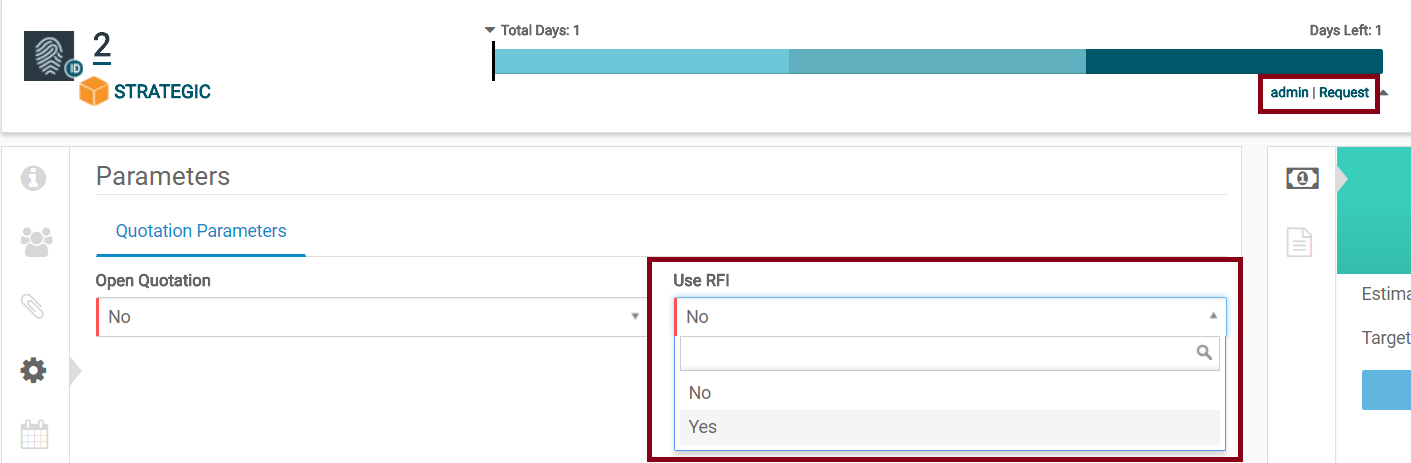
The RFI feature only can be enabled in the Request phase, through the parameter Use RFI. To enable the RFI feature in the process, set the parameter Use RFI to true.
Creating a RFI
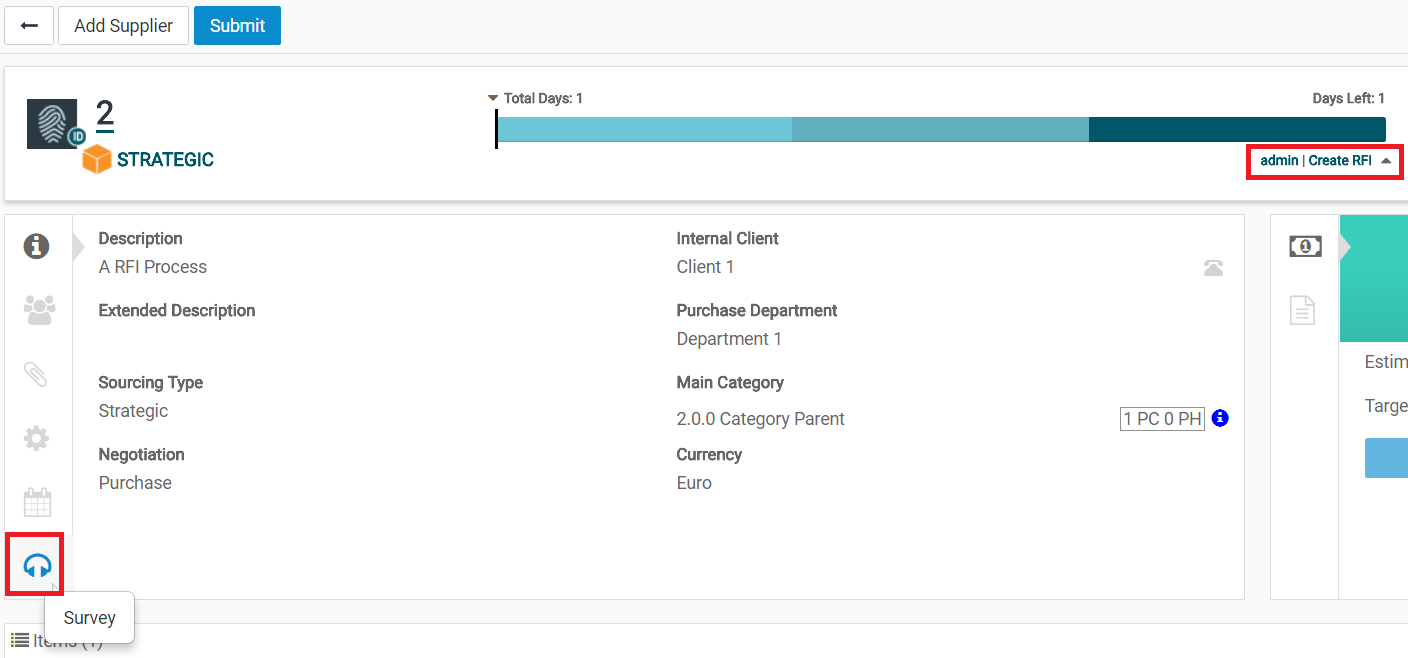
In the process phase Create RFI , on the left there is a icon to create and configure a RFI.
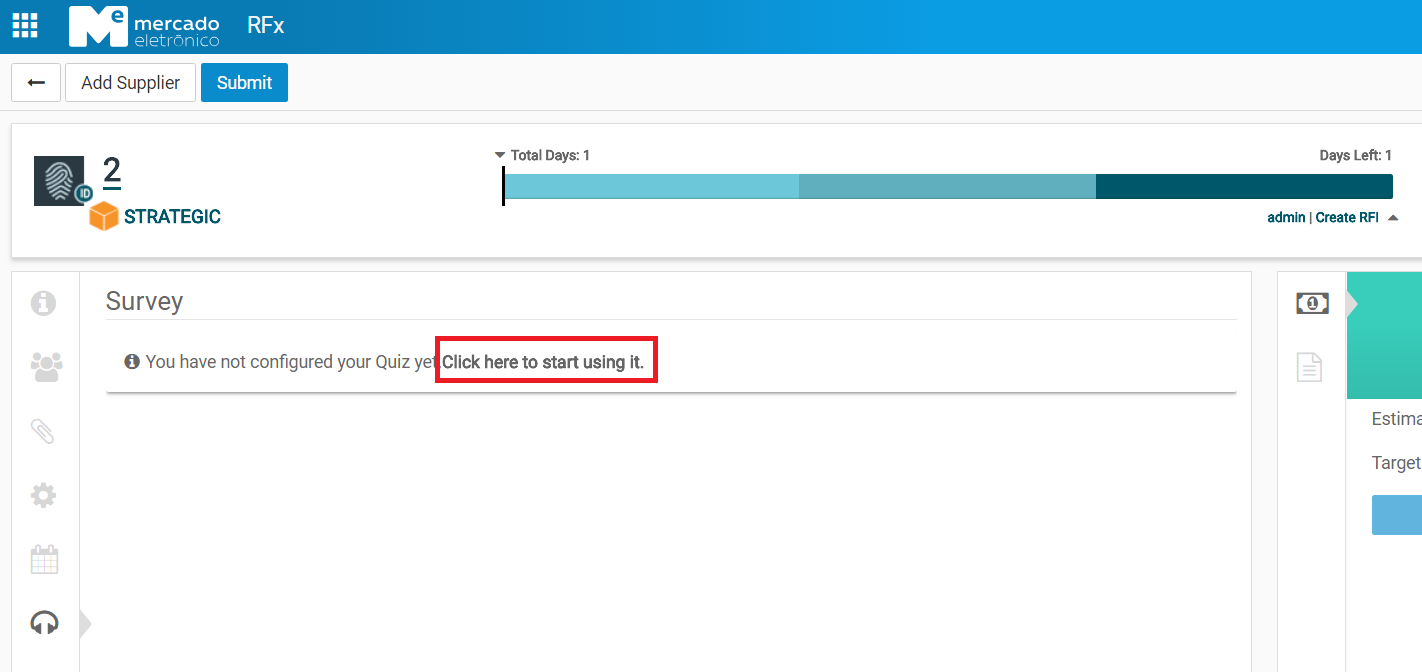
In the screnn shot below we have the main dash board. To create a new questionnaire click on the link Click here to start using it.
Select a questionnaire
Now is the moment to created or select the questionnaire.
The screen shot below shows a list of all created questionnaire in Survey application.
Note that is information is retrieved from Survey application, through the previously configured data contract.
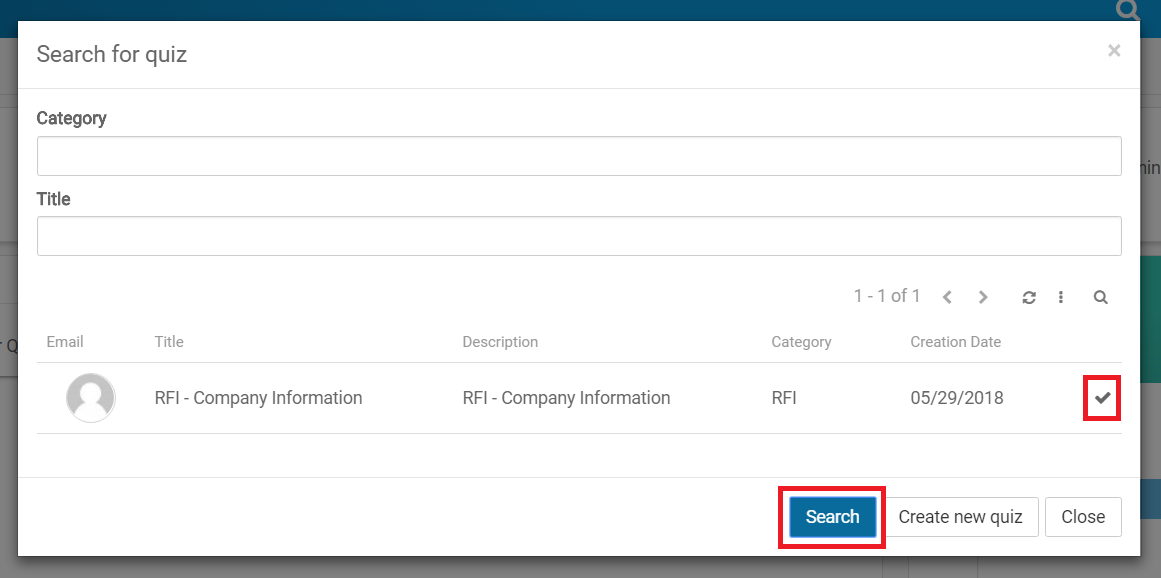
Select the questionnaire clicking in the check icon in the grid.
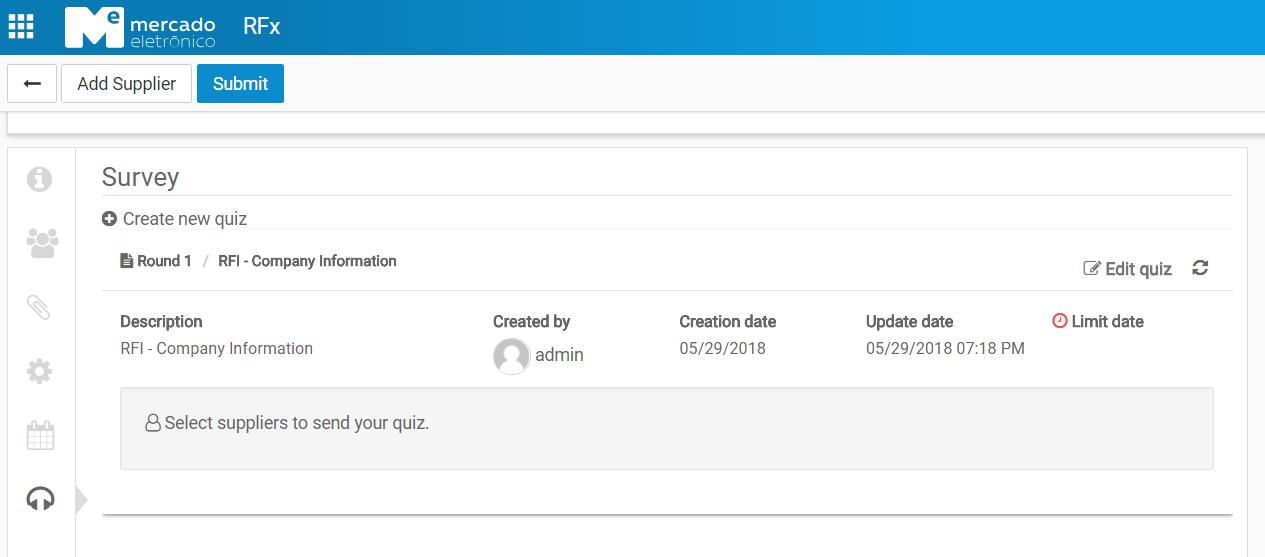
An other possibility is create a new questionnaire in Survey application clickin on Create New Quiz button.
RFI configuration
Below we have the followed actions described by the red numbers in the screen shot:
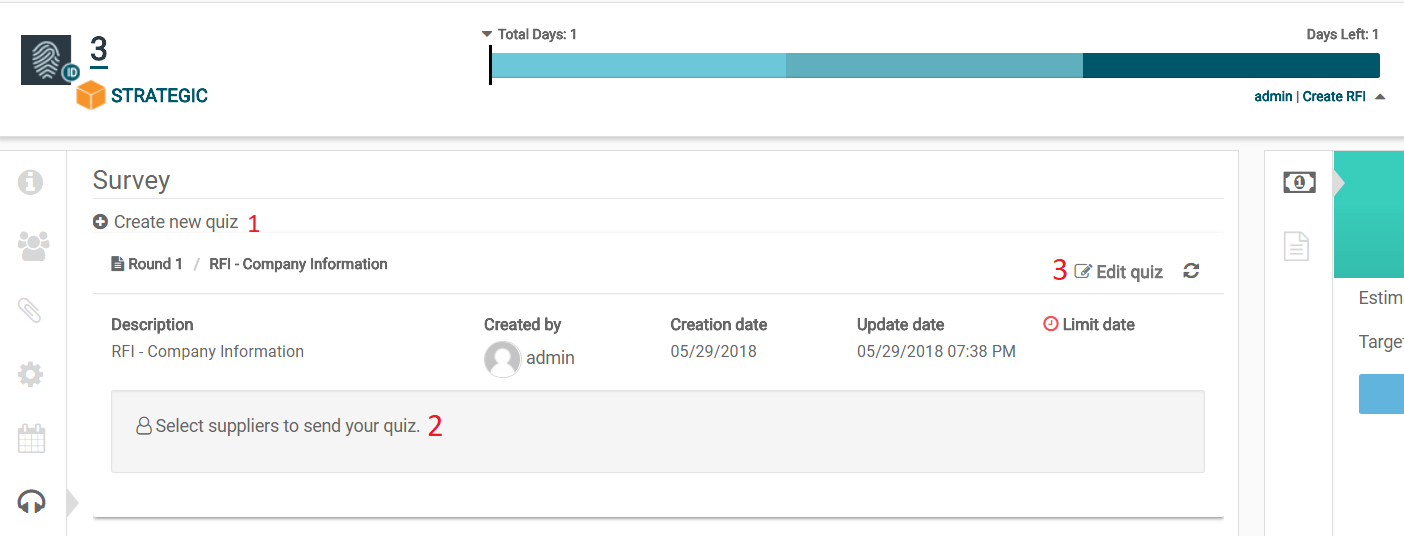
1 - Create a new questionarie
Just like said above in Creating a RFI section.
2 - Select supplier to send your quiz
Select the suppliers in the process to send your quiz.
In this phase, after select the supplier, is possible add more suppliers by clicking on Add Recipients button.
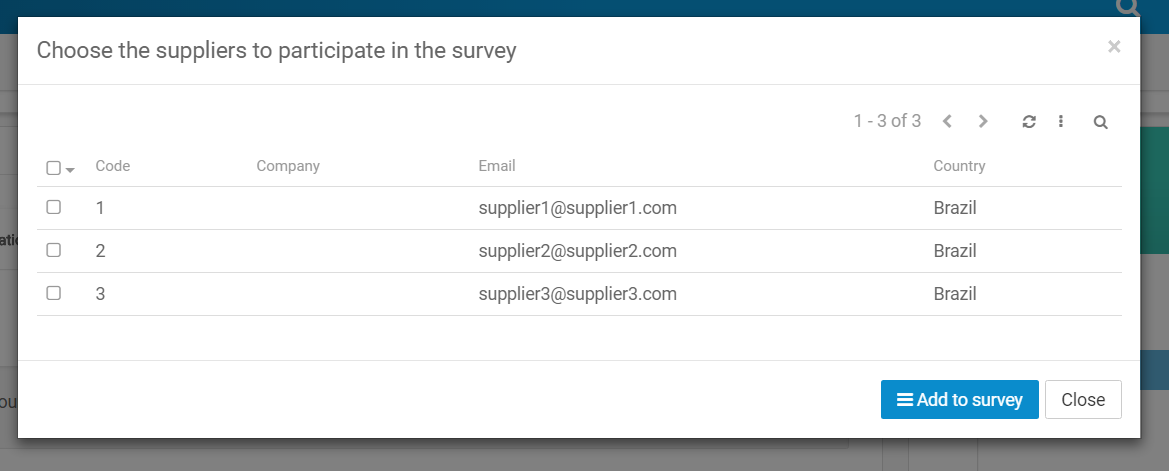
3 - Select supplier to send your quiz
Edit the questionnaire structure in Survey application.
Send RFI
After create de RFI and select the supplier is time to send the survey to the selected suppliers.
Each selectd supplier will receive a notification by message and e-mail to answer de quiz clicking on the button Send Quiz.
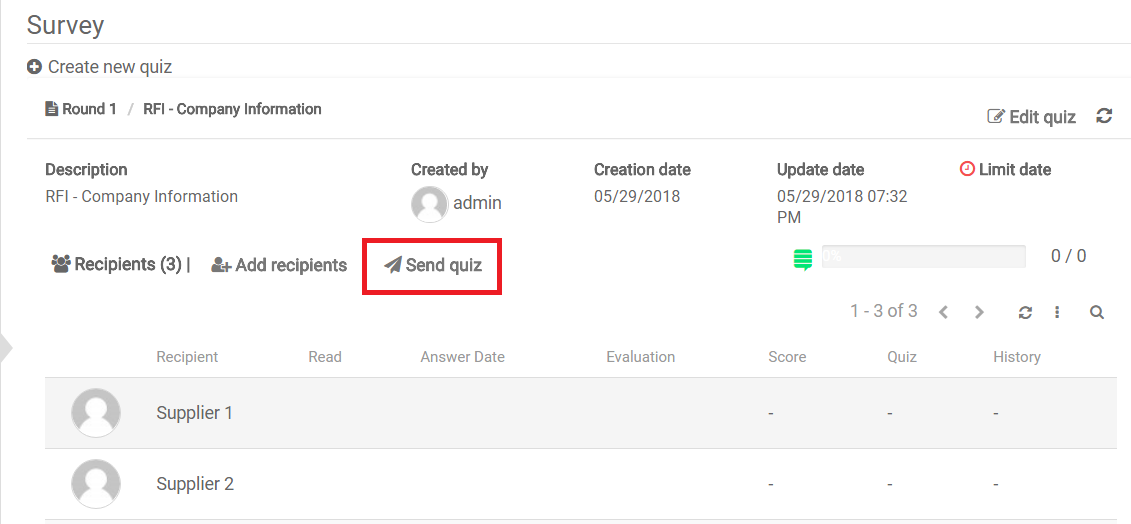
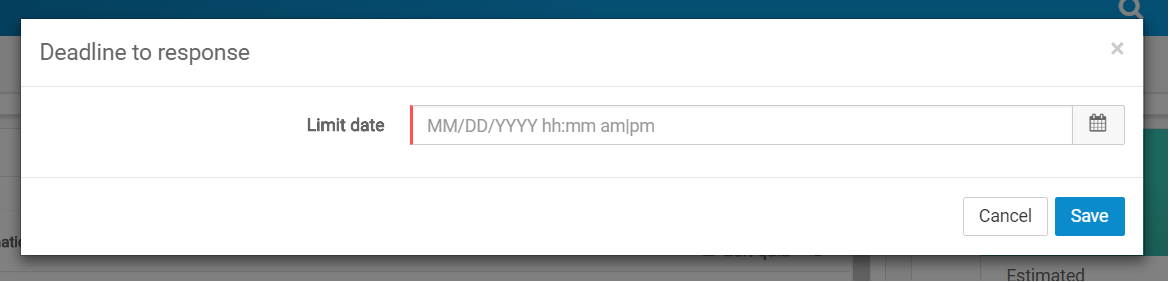
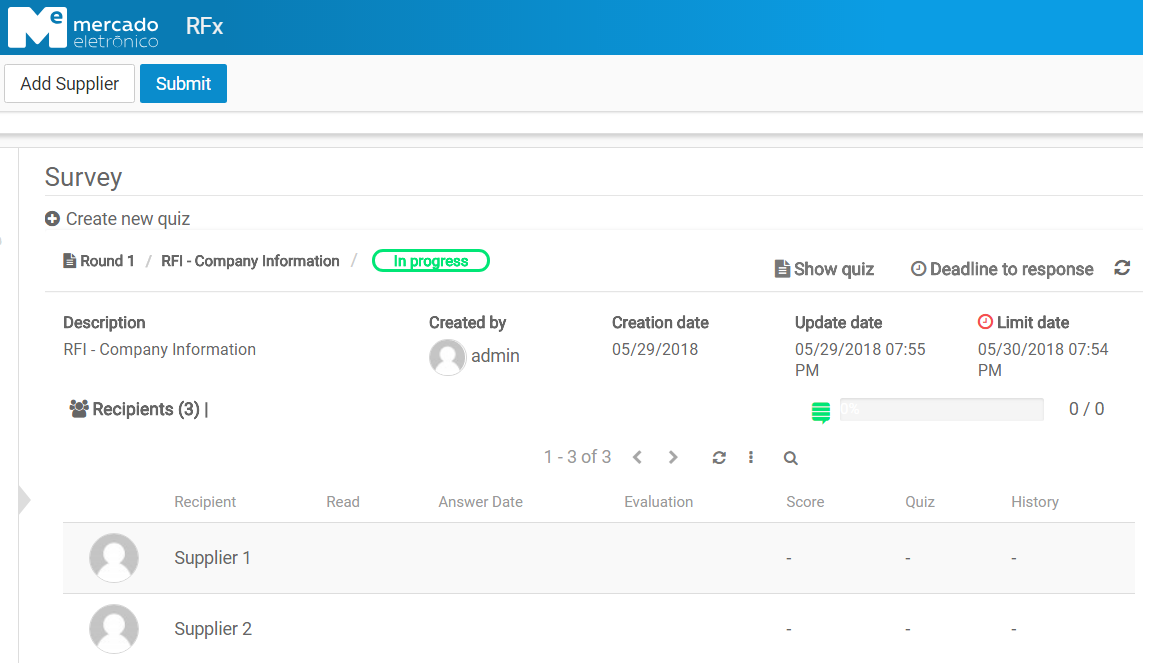
To send a quiz is necessary set the Limite Date to suppliers answer the quiz.
Now the survey is progress. To proceed click on submit button.
 .
.
Receiving RFI
In the Receiving RFI phase the questionnaire is in progress and waiting for the suppliers answers.
Below we have the followed actions described by the red numbers in the screen shot:
1 - Dead line to response
Is possible change the limite date to supplier answer the quiz. All supplier will be notified by the system about this change.
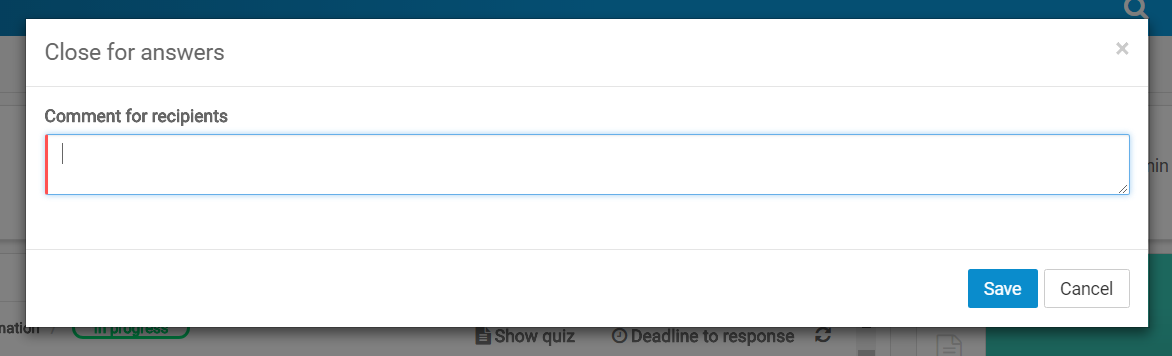
2 - Close for answers
While the suppliers answer the questionarie, the negotiator can close the questionnarie for answers at any time and proceed to the next phase. To close de survey before the limite date is necessarie write a justification note.
Manual Evaluation
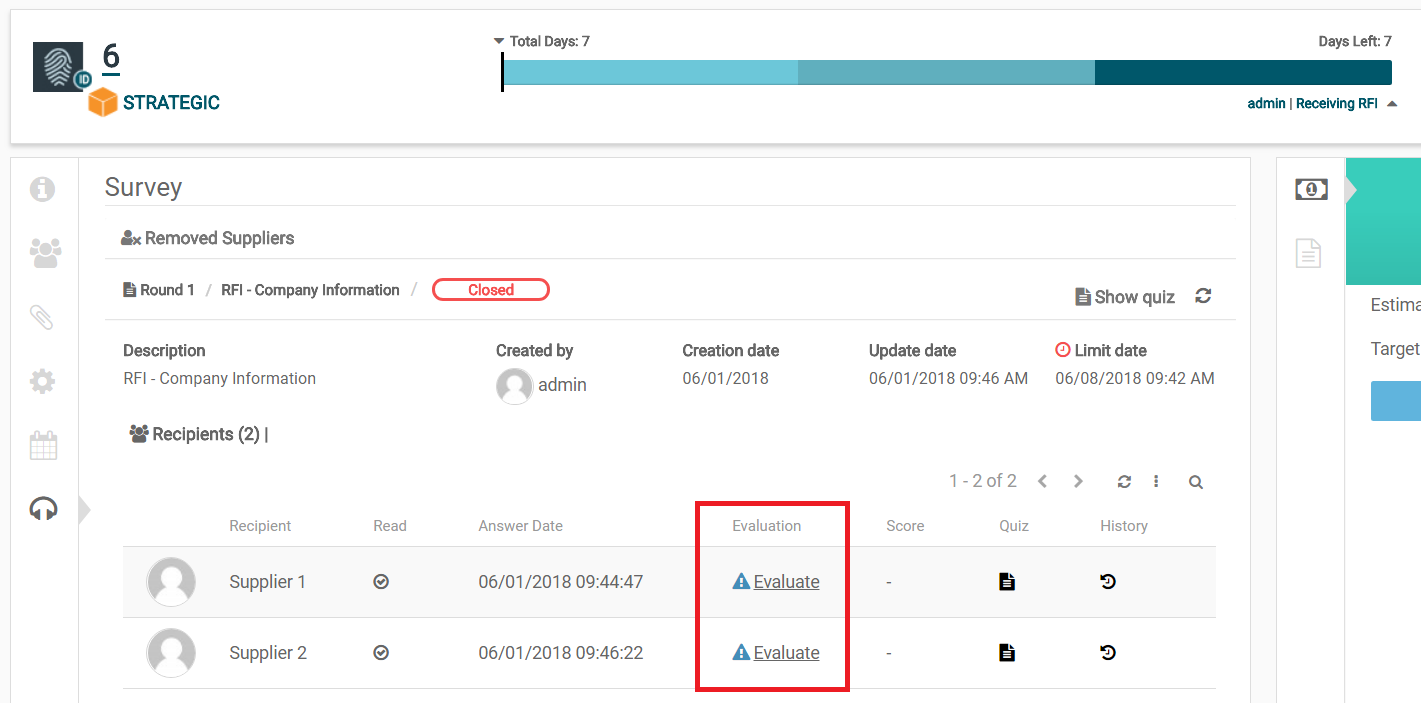
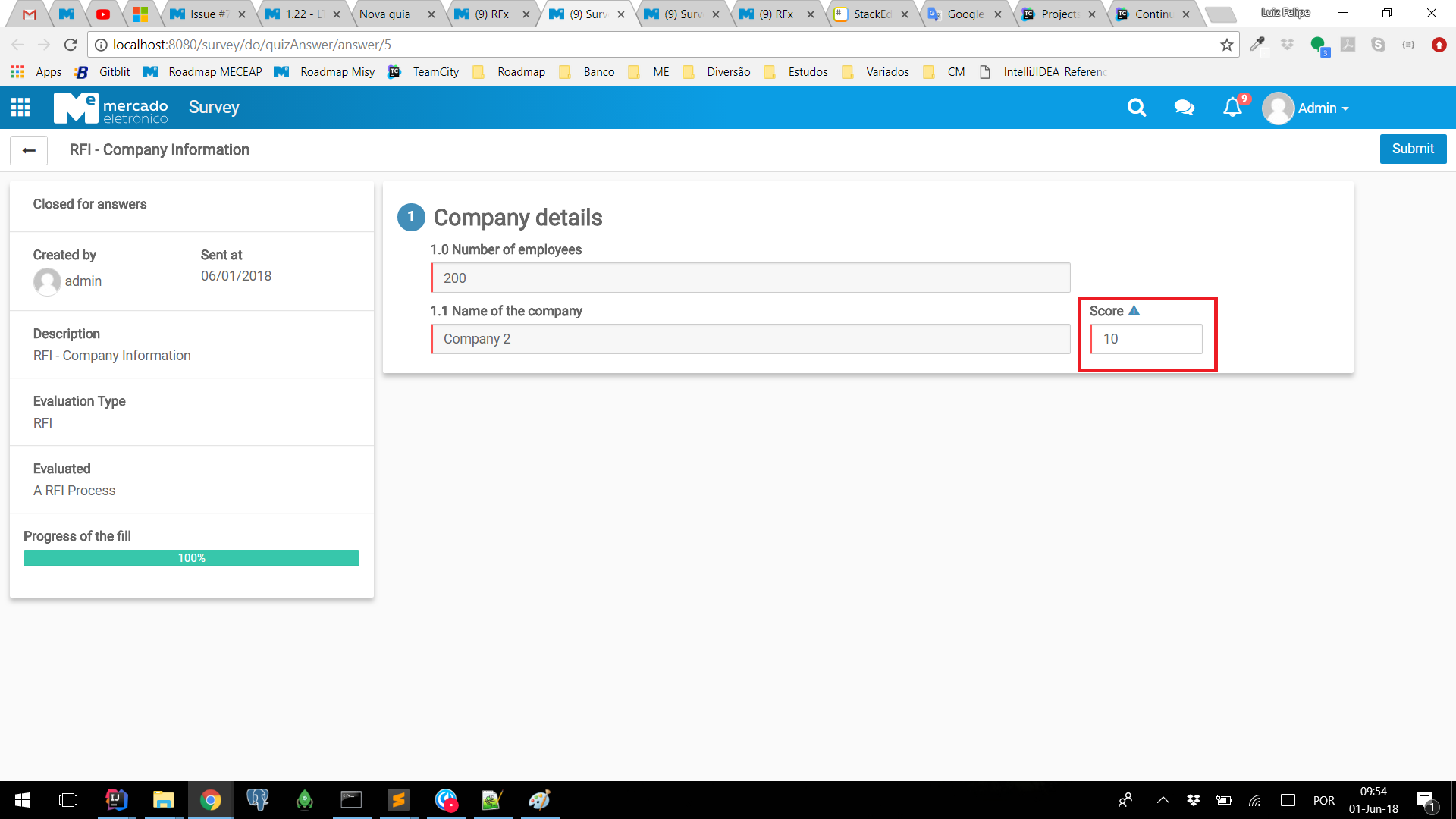
During the RFI phase, after the questionnaires was closes, the negotiator can evaluate the manual questions, if there is one configuraded.
Manual Evaluation
After the user finishs the manual evaluation for all the question, is necessary to formally end it by clicking in Complete Manual Evaluation button. This action tells to the Survey application tha manual evaluation is completed,
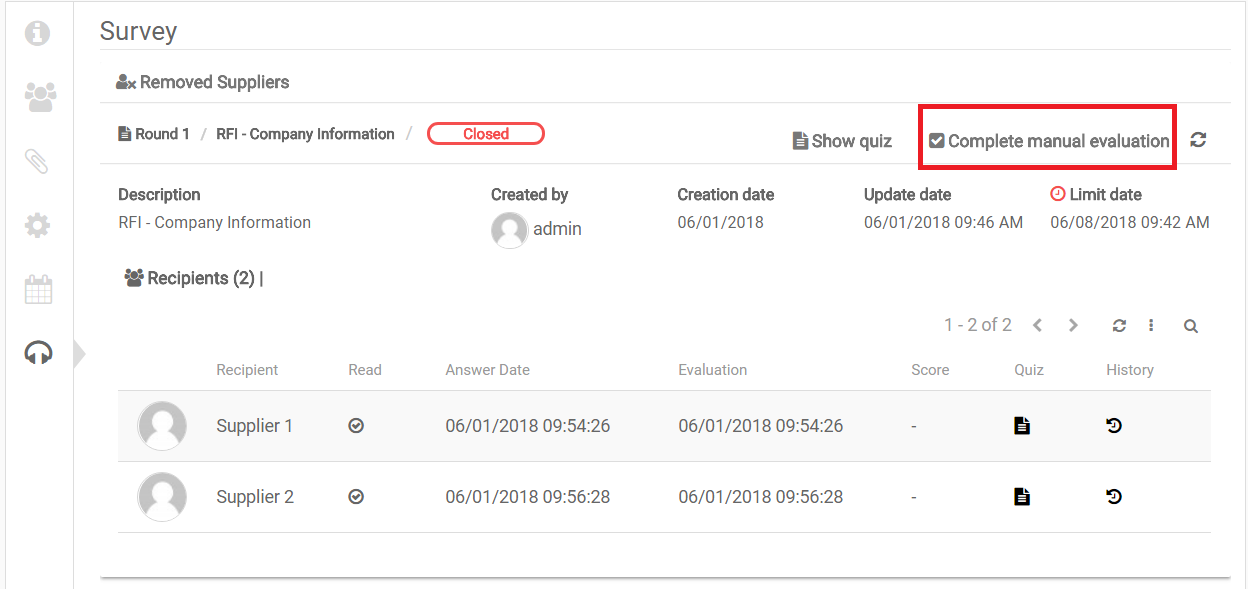
If time to suppliers answer the questionnaires is out or user close it, and the questions was manual evaluated, is the moment to proceed to the next phase clicking on the submit button.
Evaluate RFI
In the Evaluate RFI phase is the momment to analyze the score answers of all supplier.
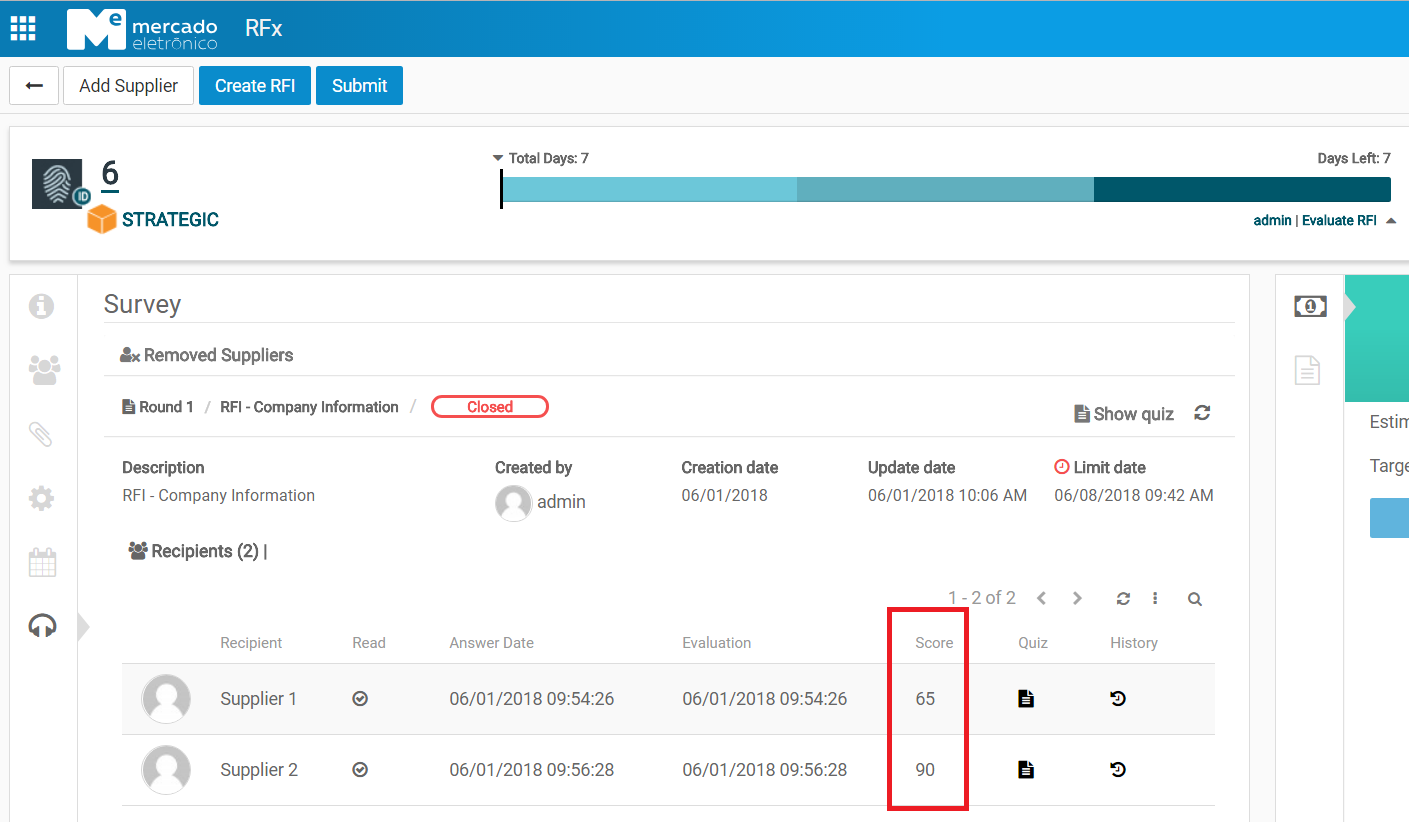
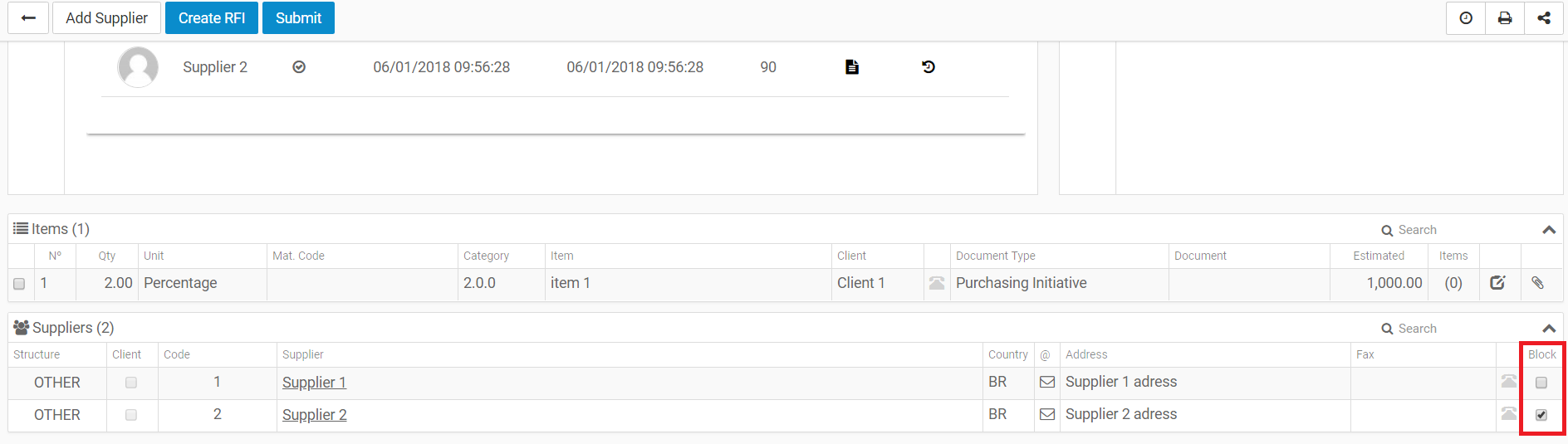
Based on score the negotiator can decides which suppliers can continue in the process. To prevent a supplier from continuing in the process, the negotiator may block it in the suppler list by checking the column Block.
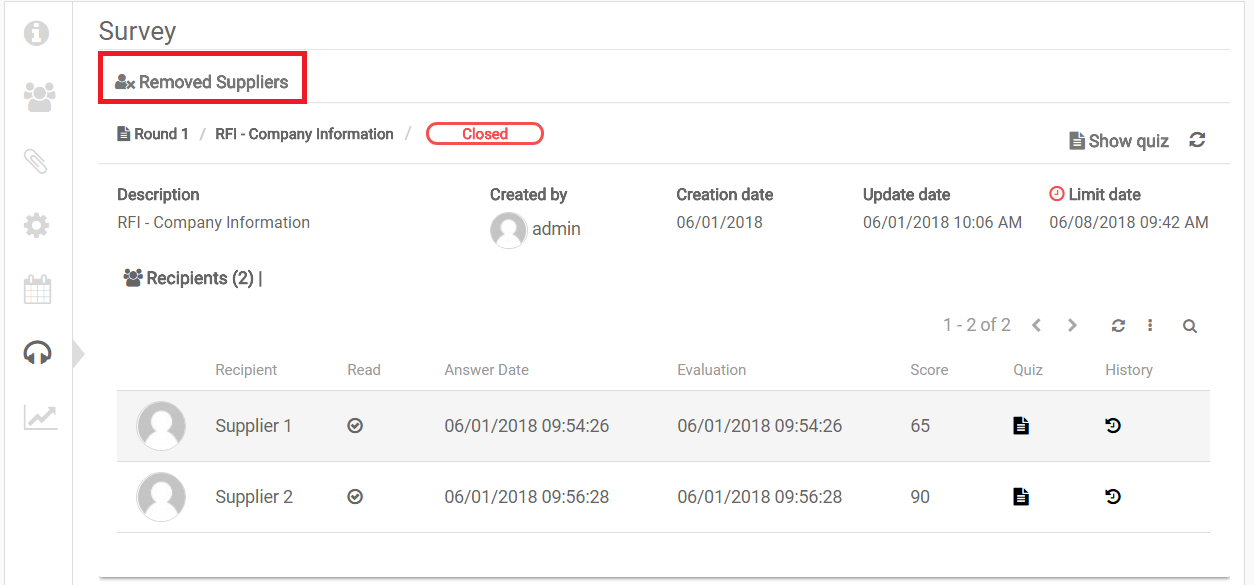
To see which suppliers were blocked in the RFI phase click in the button Removed Suppliers.
Another option in the phase is Create a new RFI clicking in the button Create RFI. The application will move to the Create RFI phase and all de RFI process starts agains. The
The negotiator can create as many RFI rounds as he wants.
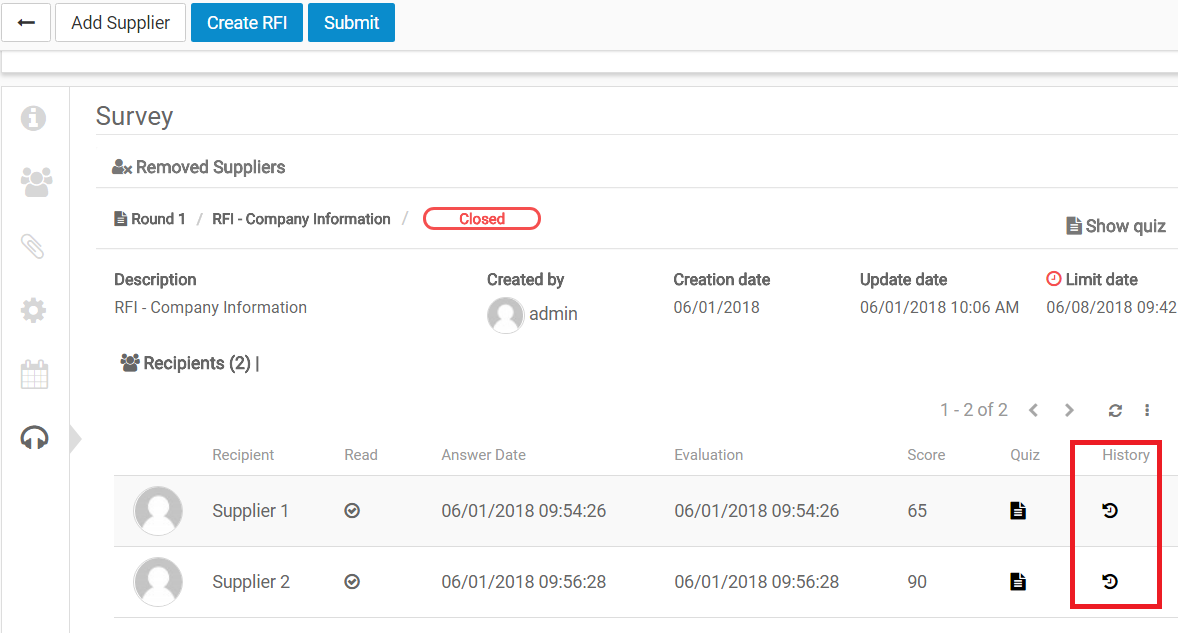
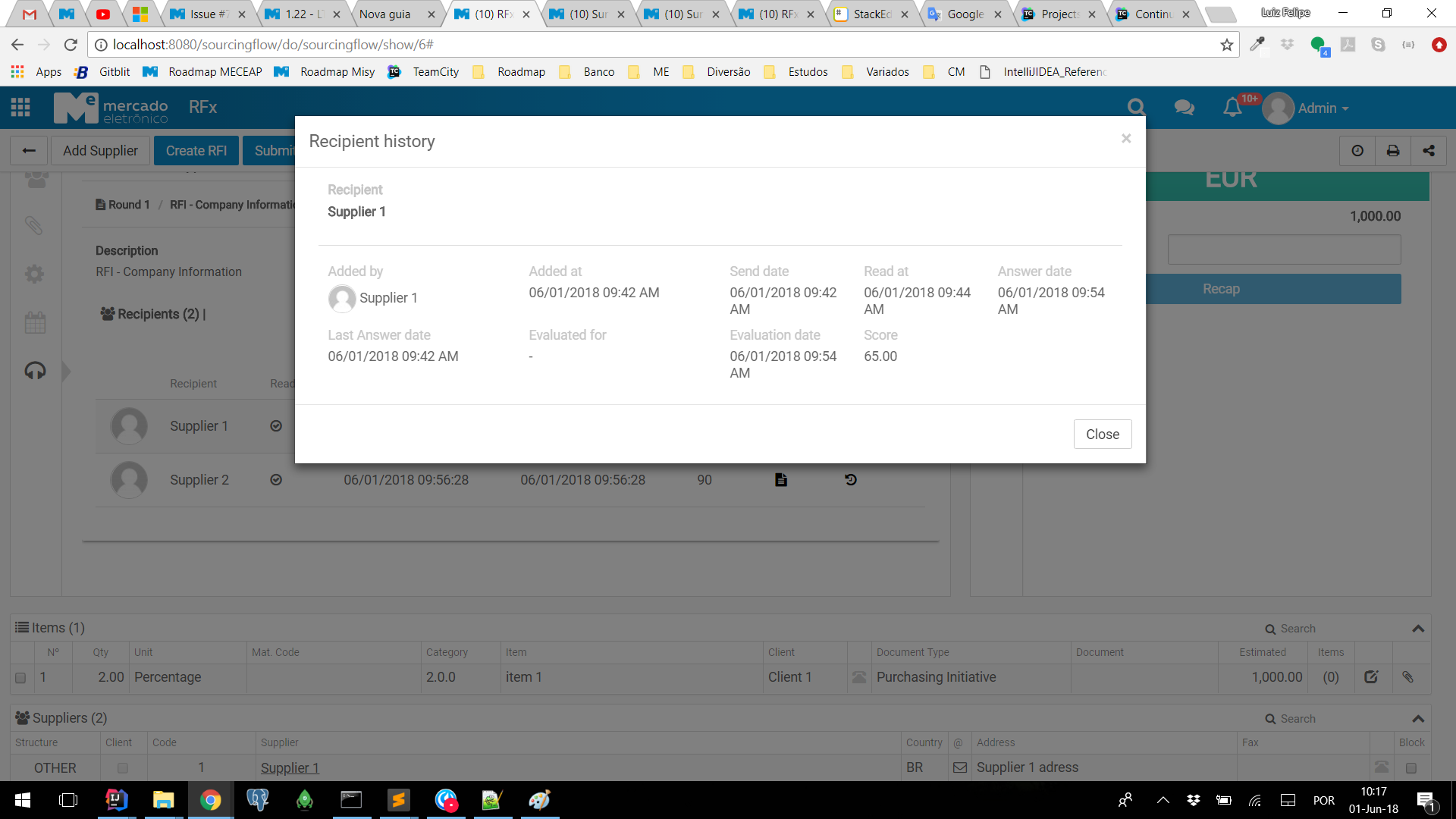
RFI Histyory
The negotiar com access all history about RFI process.