Creating Fields
What is Screen?
Screen is a feature that allows packing different fields in one section. Screen is an XML inside the folders from mapping and screen.
How It works?
You can copy another screen.xml for example, if you want. Each Screen has a name and a document type.

The Document Type is a ddm file. For example SourcingFlowDoc.ext.ddm.xml, this file config all screen of the Sourcing Flow Documents The ddm is the configuration of the fields on the screen. On the ddm, we put the data object (object relationship with the data), multiplicity (ONE or ZERO_OR_MANY) and the name (the name is the key from the screen section)

How create a new field on the Screen?
You need put a new field on the data object file, and relate on the ext.ddm. After that, you can to config the new field on the screen.
Let's use with example a new object Buyer on the Sourcing Flow Doc.
1. First you create a new dom.xml on folder mapping > dataobject. buyer.dom.xml More information here;
<?xml version="1.0" encoding="UTF-8" standalone="yes"?>
<do-mapping xmlns="http://meceap.me.com.br/schema/do-mapping" xmlns:xsi="http://www.w3.org/2001/XMLSchema-instance" xsi:schemaLocation="http://meceap.me.com.br/schema/do-mapping http://docs.misy.me/xsd/do-mapping.xsd">
    <do baseName="ActorProcessRole" description="Actor Process Role" name="ActorProcessRole" pluralBaseName="ActorProcessRoles">
        <property description="buyer.name.description" displayName="buyer.name" type="java.lang.String" name="name" order="10">
            <param name="length" value="100"/>
            <param name="minLength" value="0"/>
            <param name="required" value="false"/>
            <param name="auditable" value="false"/>
            <param name="email" value="false"/>
            <param name="useTextArea" value="false"/>
            <param name="ignore" value="false"/>
            <param name="updatable" value="false"/>
            <param name="meTextEditor" value="false"/>
            <param name="markDownEditor" value="false"/>
            <param name="sortable" value="false"/>
        </property>
    </do>
</do-mapping>
-
You need set the
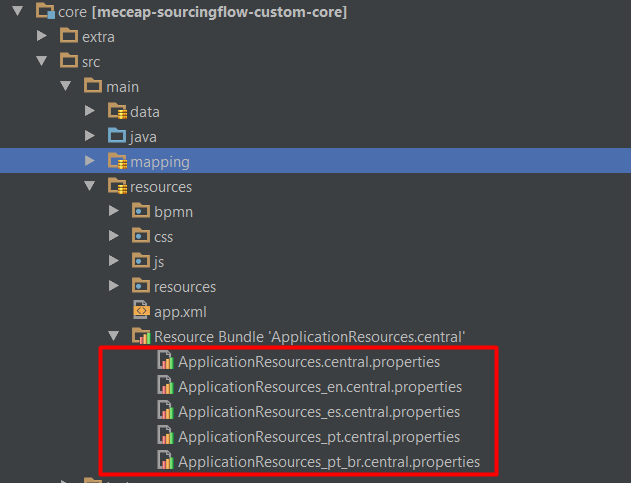
descriptionand thedisplayNamewith the translate tag (For example:buyer.name.description). -
You need to add the translated code to the language files. You set the tag (for example buyer.name) e the language text.
- After that, you need to relate the new object with the dom header or header. In this case, you need to add on the
headerVTwo, because the object Header was whole.
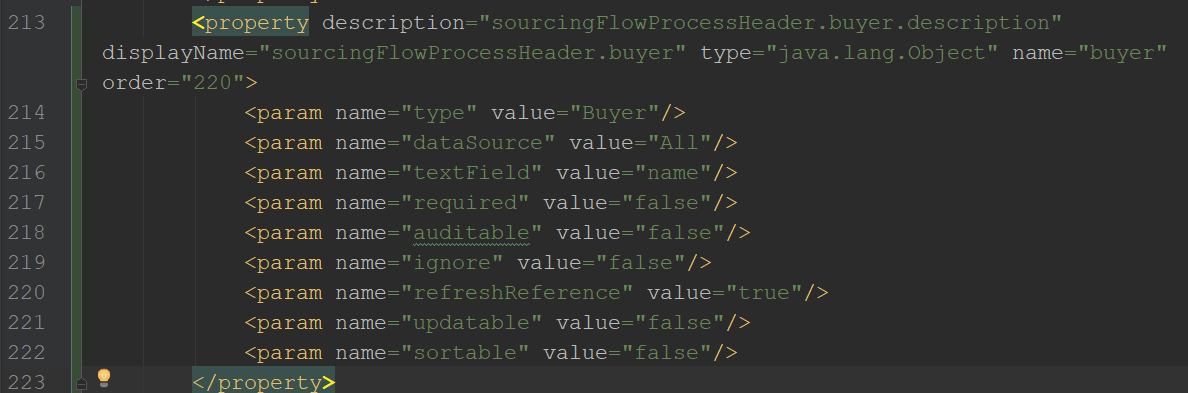
-
You need to pay attention in the order when you put the new field, in our example the last field is 210, for that we set 220
-
After that, you need to relate the new object with the ddm. On our example: We put the buyer on the Sourcing Flow Doc. If you related to the existent object (for example headerVTwo), you don't need change the ddm.
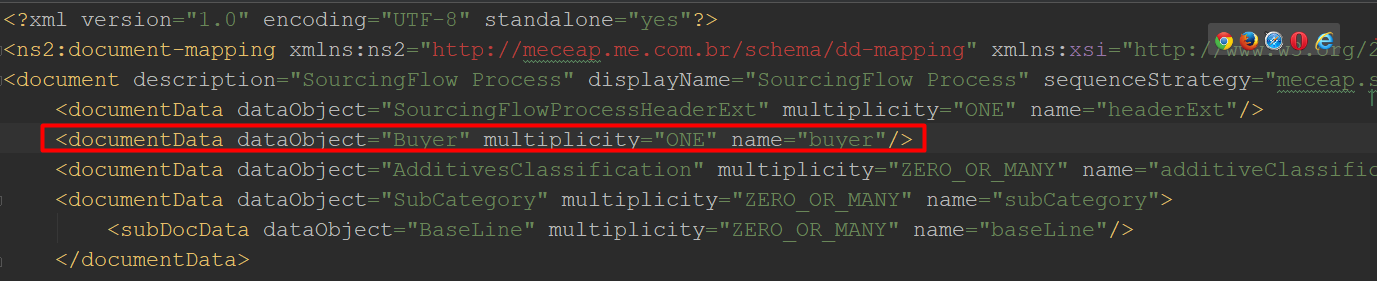
- On the screen file, You need create a new section if you don't use the existing ddm
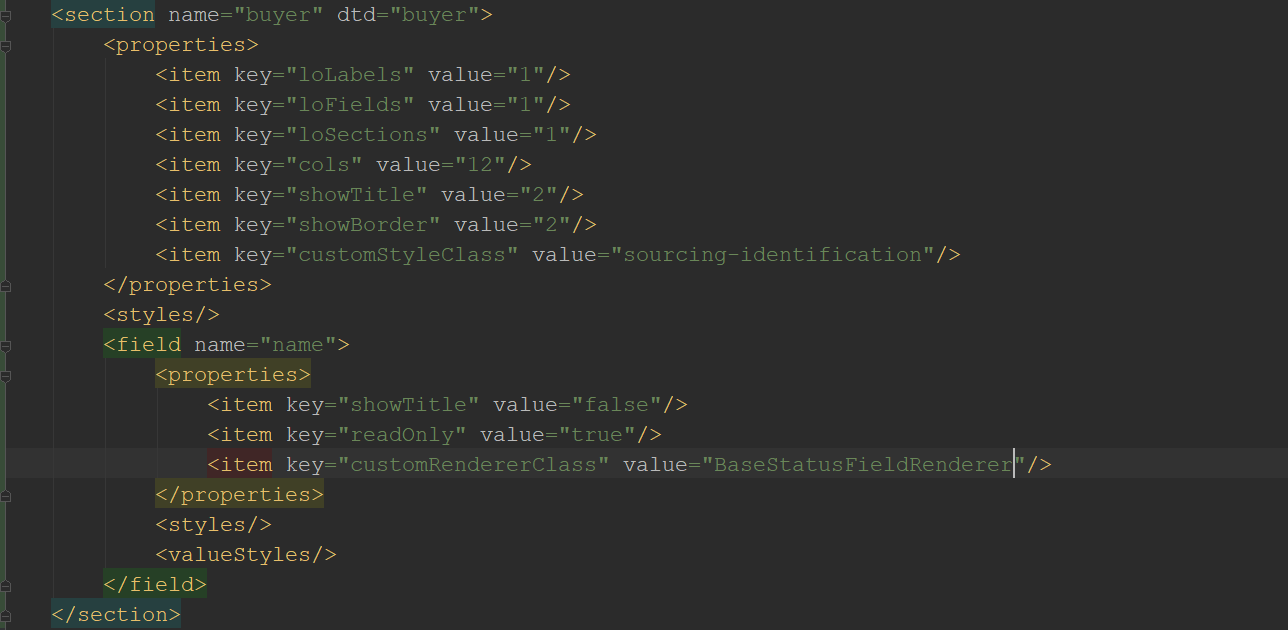
- When you create a new section, you need to do some configurations.
- On the properties tag: You config how section is shown example
colsmain the number of cols your section will occupy (the default is 12 cols - Bootstrap render);showTitleconfig either '1' (if you want to show the title) or '2'showBorderhas the same logic. -
On the field's tag: You config the fields you can show. If your object has 3 fields, and you want to show always, you need to create 3 new tags (one for each). And you need to config some properties too. For example
showTitleindicate if you want to show the title,readOnlyindicates if the fields will be writable or not, finally thecustomRendererClassindicate the coffee script that will be responsible for render the field. -
You need to config the field permission for each phase of the BPM Look the BPM documentation. For that, you need to add an excel for to upload data.
- On the RFx there are a table call of
screenfieldpermissionthat management the permissions. You need to insert the field permission in each phase of the flow. - For that you can create a excel table with the fields:
sourcingType: It is the kind of the flow (If the field is empty, the config suits for all flows)status: It is the step of the flowfield: It is the name of the field on the tag properties of the dom xmlreadOnly: It is the configuration of in this step this field is writable or only readomit: It is the configuration if the field will be visible or not on this step of the flow.required: It config if the field will be required or not on this stepsectionName: The name of the section on the DocumentparentPath: The Path of the parent (For example headerVTwo).- The name of the sheet on the xls is the name of the table that you can change. Follows an example file
- We named our file to buyer v1 because the file is the first version. As you can see on the file: this permission is for all the sourcing type (all the flows). In some steps, it can be seen (For example: Approve Archive Edition), and another it is omitted. Nowhere steps it is only to the read or required. Because the document is set false.
-
You need put the version, because the command ceap:upload-data * You need put the version, because the command ceap:upload-data only load the xls once time.
-
You need to edit the file app.xml (on the resource folder) adding the buyer.v1.data.xlsx. The app.xml config the files that the upload data to use to do the load of the data.
        <changeSet id="buyer-00001" author="lcjospin" description="Default data for new new field">
            <dataFile fileName="screenFieldPermission/buyer.v1.data.xlsx"/>
        </changeSet>
- The author is the name of the change responsible;
- The
fileNameis the path of the file.