Communication
This feature came with the goal to show a message each time the user access this application after login in to CEAP.
Configuration
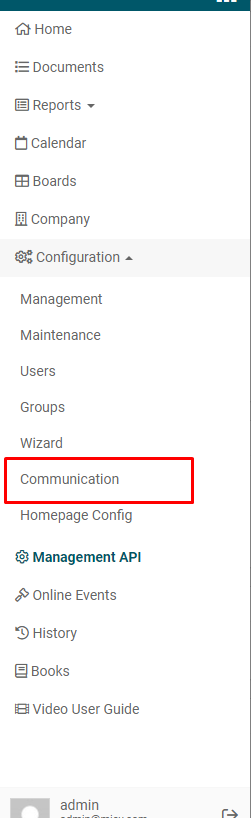
To configure this feature a user must have the permission PERM_MANAGE_COMMUNICATION enabled. After having this configuration enabled, there will be a new option in the application SideBarMenu called Communication, just as shown in the image bellow:
After clicking the link, it will show the following page:
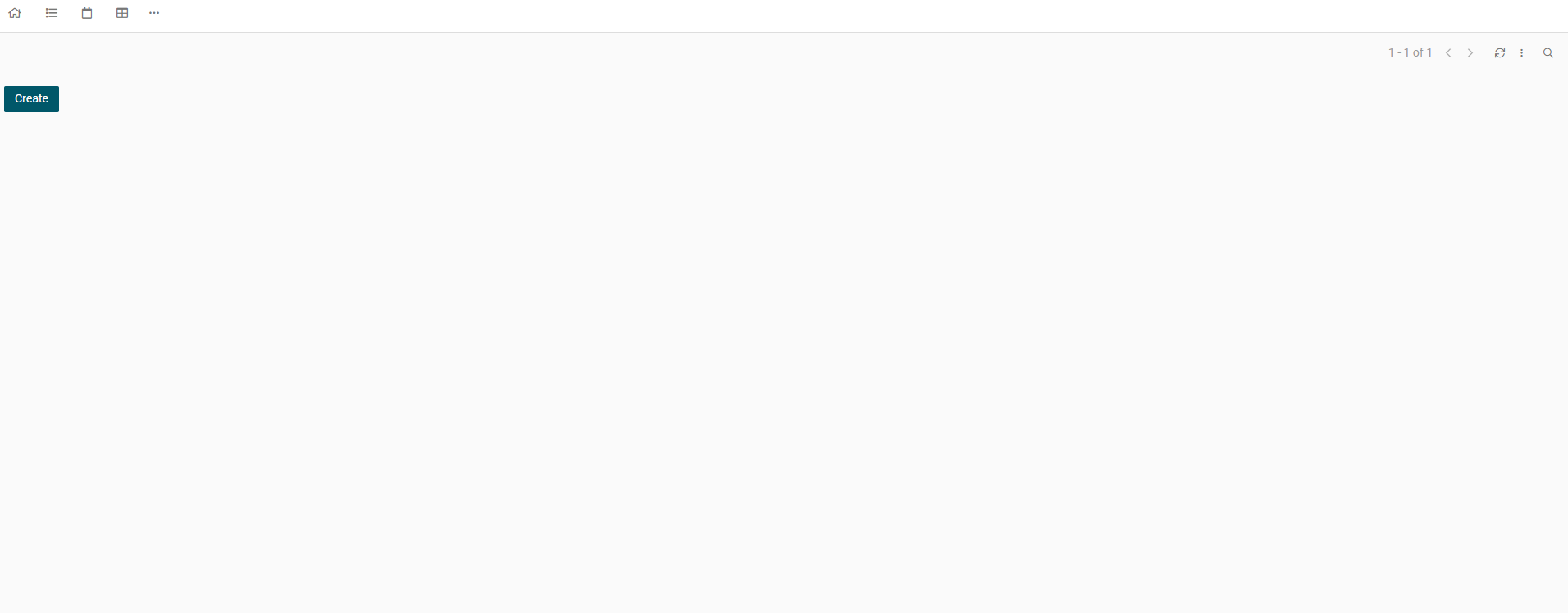
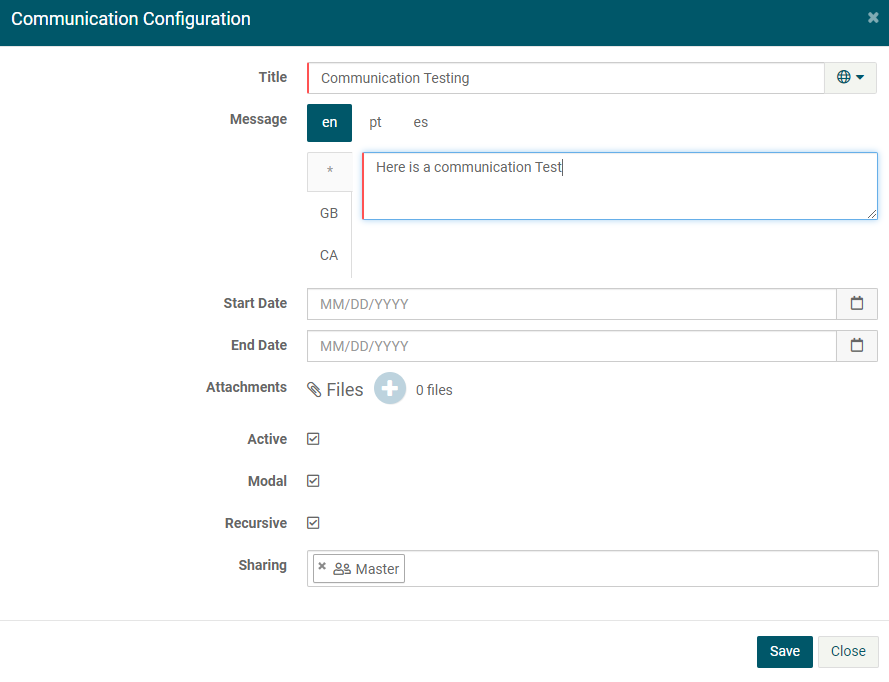
To create a new configuration, just click in the Create button and it will prompt a popup to configure a new communication. To check the purpose of each field click here
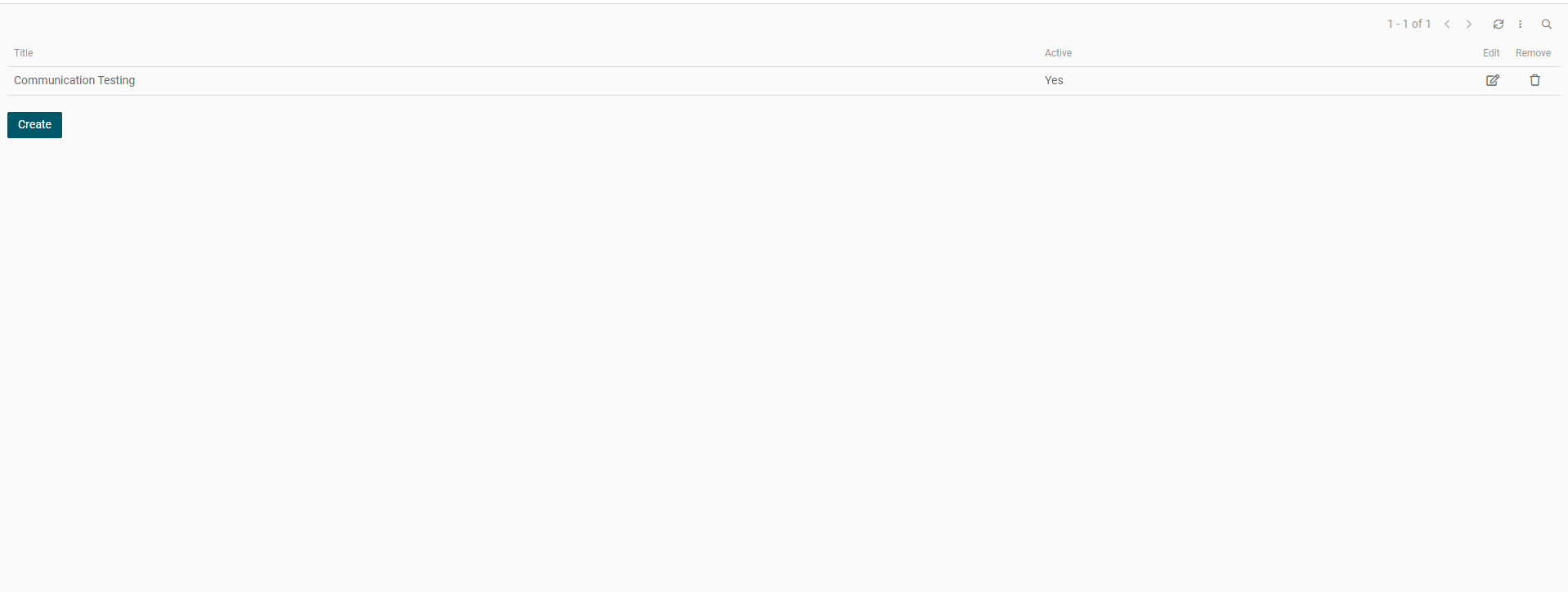
After filling all the information and clicking in the save button, the communication will be listed in the communication configuration page:
Results
After logging in with one of the users defined in the communication, the user should see the communication right after entering the application. Depending on the modal property configuration, he will see one of the following communication configured:
Example 1 - With modal enabled and recursive enabled:

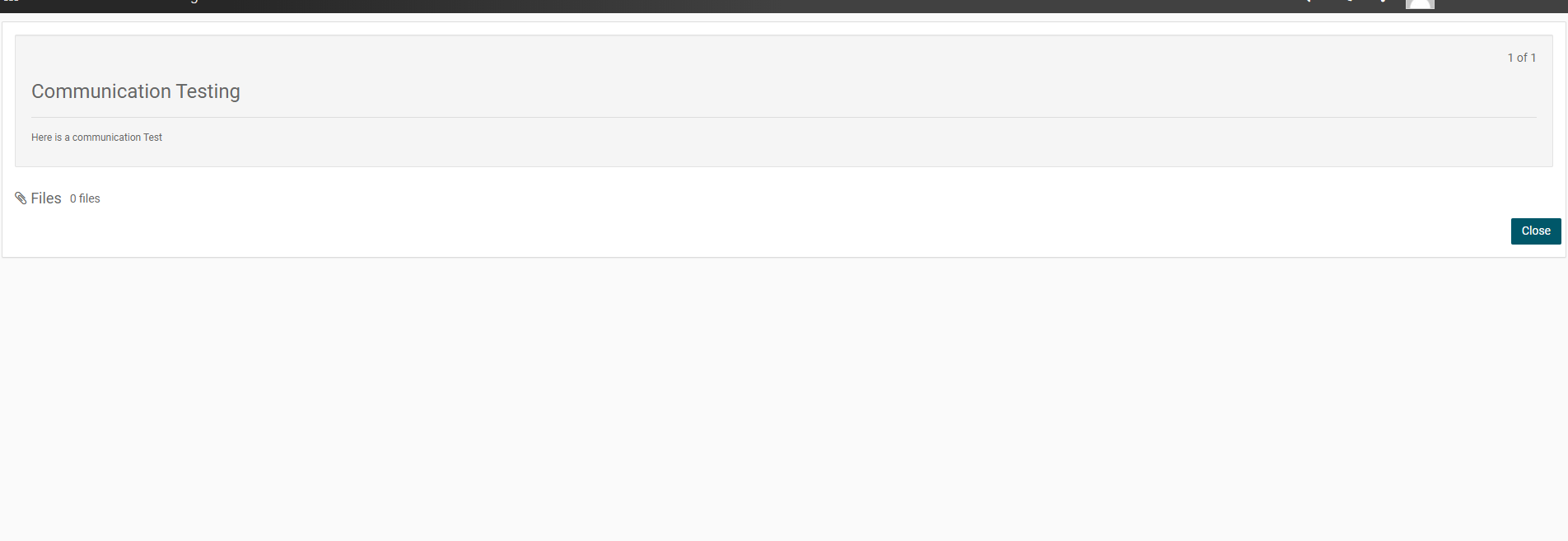
Example 2 - With modal disabled and recursive enabled (full page):
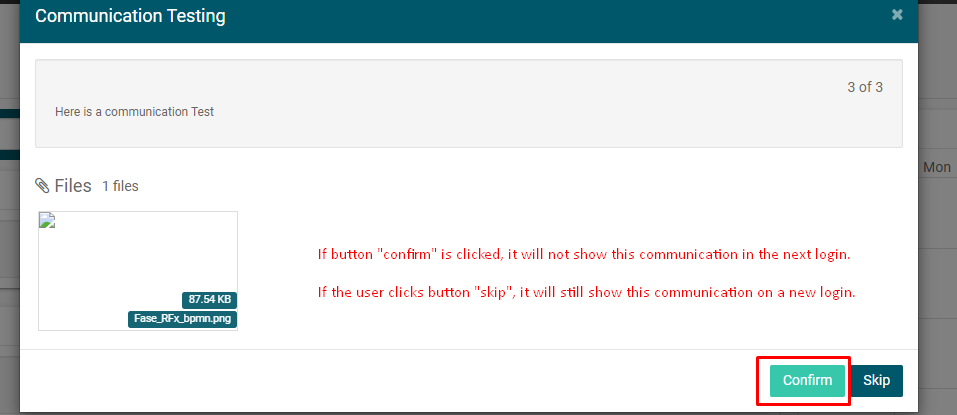
Example 3 - With modal enabled and recursive disabled:
Example 4 - With modal disabled and recursive disabled (full page):
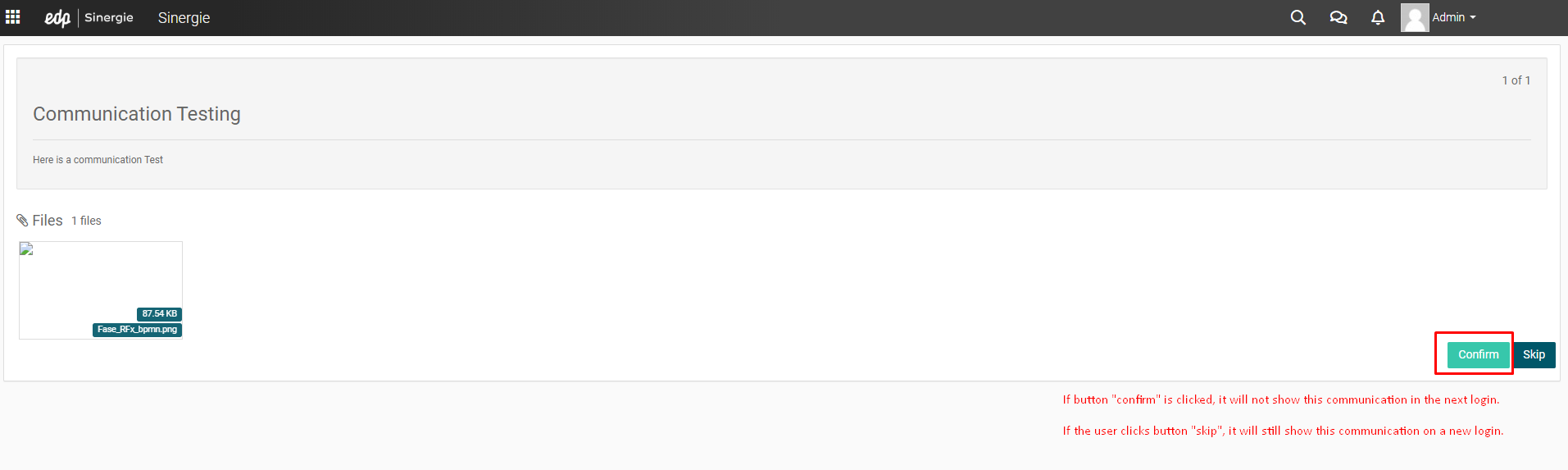
Each communication will stop showing after the user clicks on one of the buttons shown in the images above. Each button has a different behavior:
- After clicking Close button in configurations based on Example 1 or Example 2 or Skip button in configurations based on Example 3 or Example 4 the communication will not be shown until next login.
- After clicking Read button in configurations based on Example 3 or Example 4 the communication will never be shown again, only if an admin user edits the configuration for that communication.
If the user decides not to click in any button, the communication will always show, even if a user types a different url inside the application.
Field Information
- title: The title of the communication. This property must not be empty. If no other translations are inserted, it will copy the default translation into the other languages.
- message: The message that will be presented to the user. This property must not be empty. If no other translations are inserted, it will copy the default translation into the other languages.
- startDate: To determine when to start showing the given communication. If this property is empty, it will always show the communication.
- endDate: To determine when to end showing the given communication. If this property is empty, it will always show the communication.
- attachments: To include attachments. This property is not required.
- active: To enable or disable showing a given communication.
- modal: To determine if the communication will be shown in a popup (if this property is selected) or in full page (if this property is not selected).
- recursive: To determine if the communication will show each time the user enters this app right after logging in (if this property is selected) or only once (if this property is not selected).
- sharing: To determine which groups, which companies or which users will receive the communication. If no user/group/company is inserted in the configuration, no one will receive the communication.