Buyer Pendency Feature
What's the buyer pendency feature?
Buyer Pendency is a feature that allows the buyer to import items from E-Proc and incorporate these items into the RFX process.
Configuration
Pending E-Proc Button
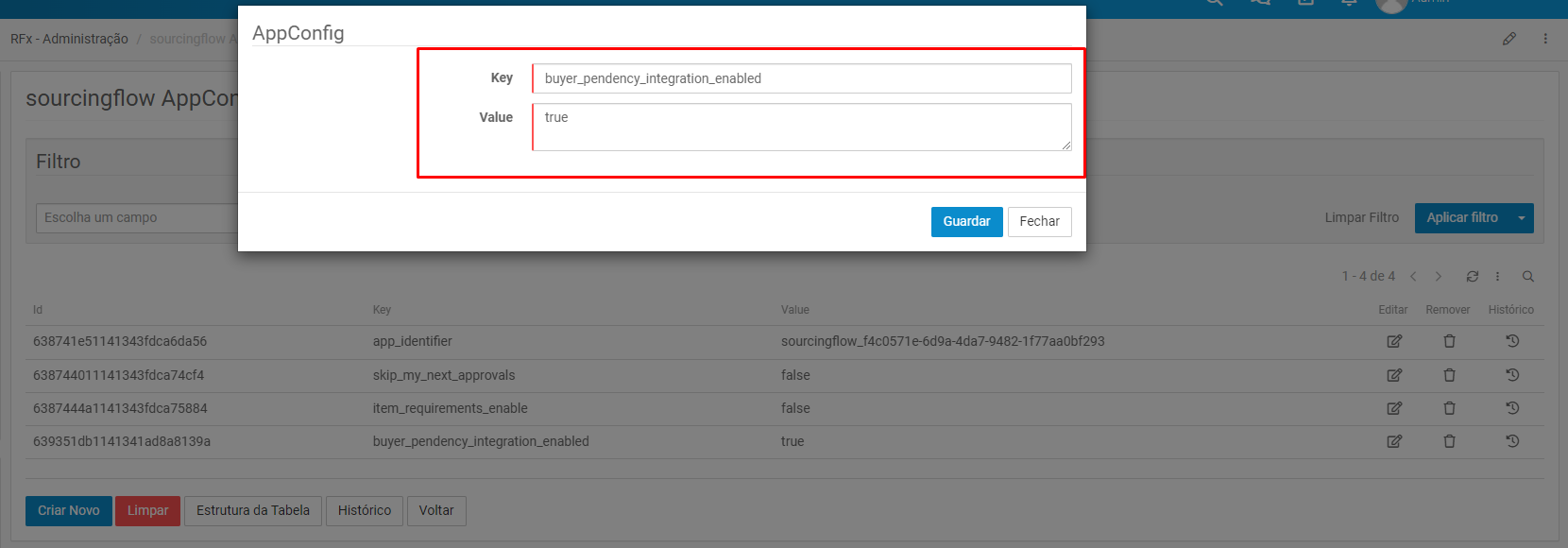
Insert a configuration in table AppConfig with key equal to buyer_pendency_integration_enabled and value true
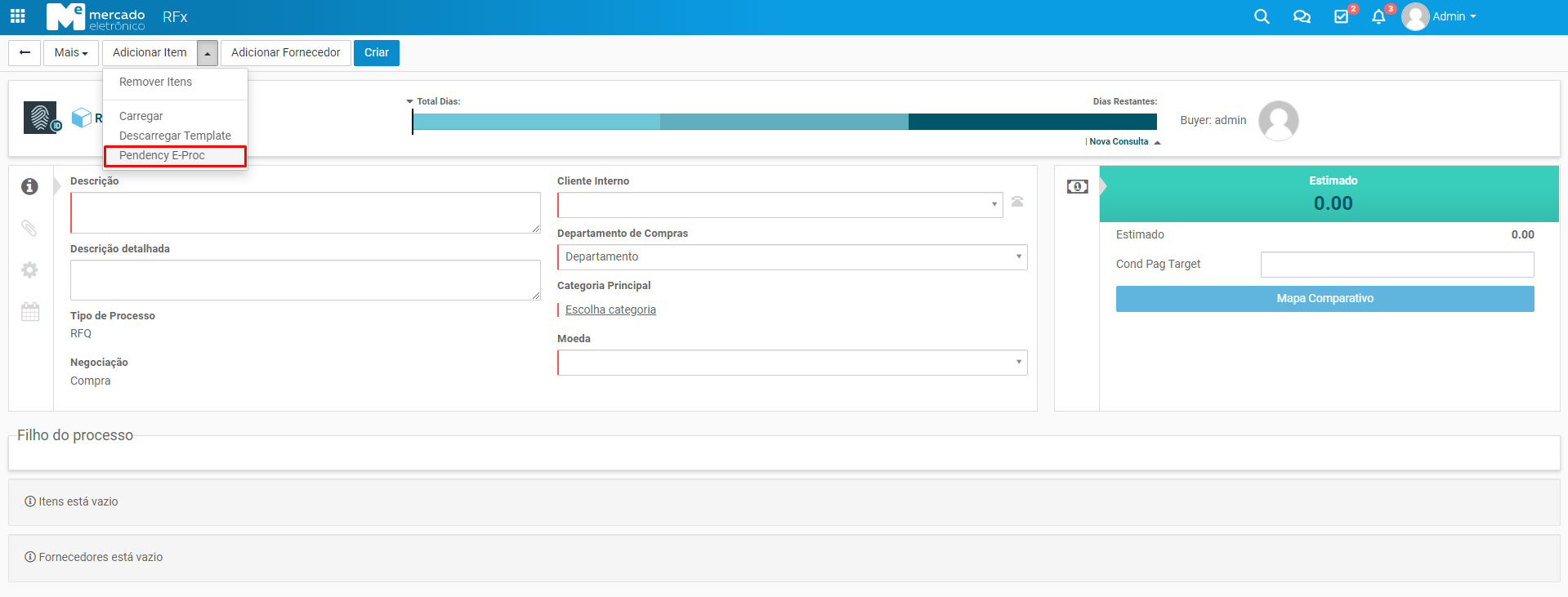
After this insertion, the Pending E-Proc option will be shown in the Add Item button on the process screen.
Disable integration of SubItems and/or Attributes
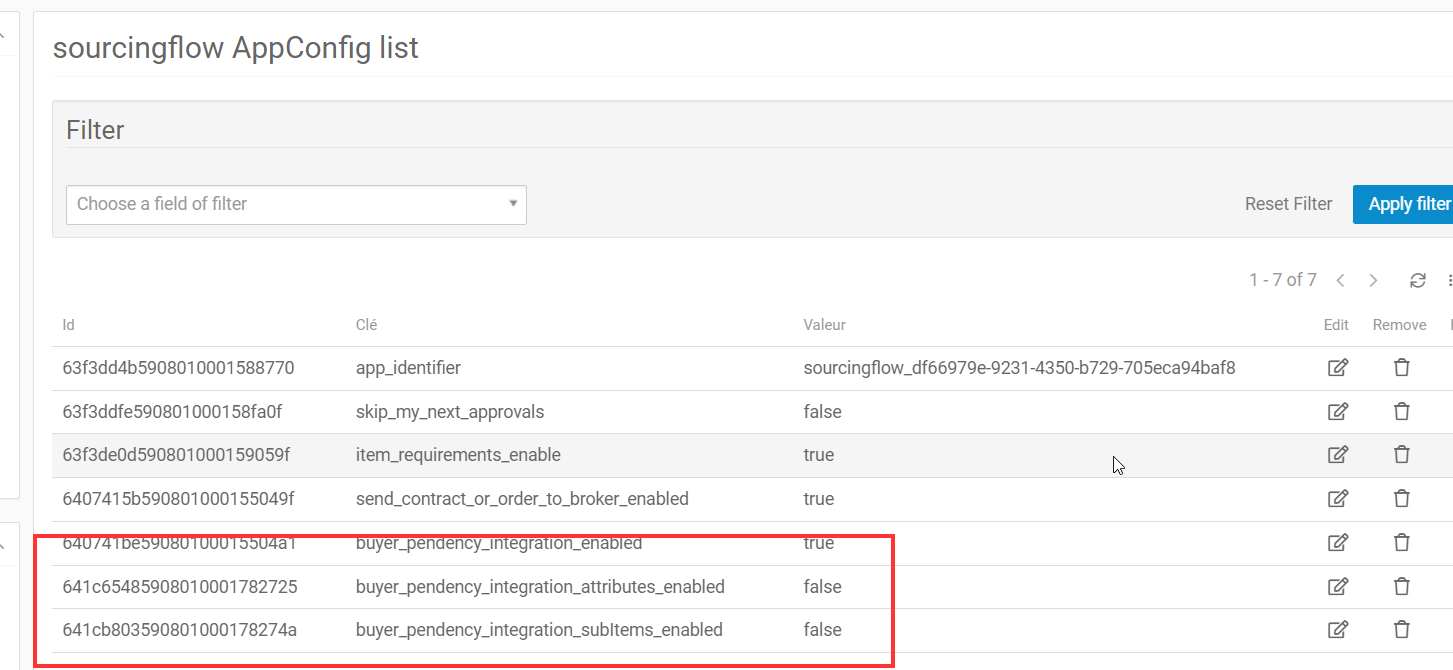
Integration with SubItems and Attributes are set by default. If you want to disable it, follow the steps below: - subItems: Insert a configuration in the AppConfig table with key equal to buyer_pendency_integration_subItems_enabled and value false to disable integration of subItems. - attributes: Insert a configuration in the AppConfig table with key equal to buyer_pendency_integration_attributes_enabled and value false to disable integration of attributes.
Connections Config
So for the function to be able to fetch and update the items in the E-Proc, it is necessary to configure some connections.
To configure we must go to the ConnectionProperties table and insert the following settings.
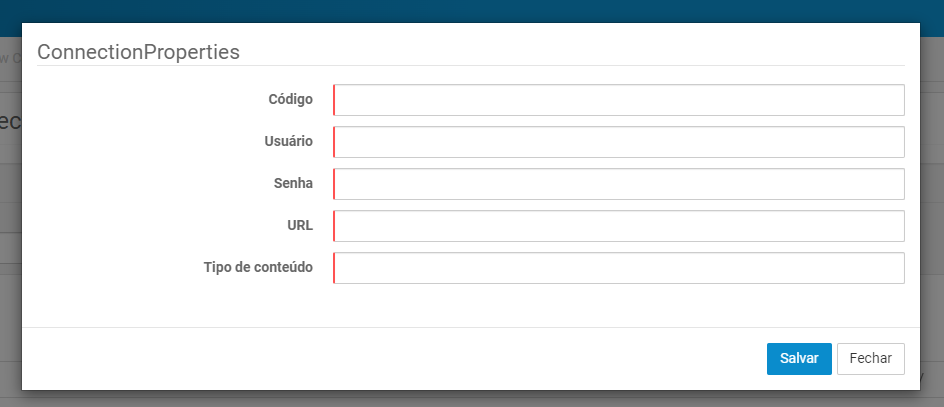 - Code (Código): A unique identifier consisting of the type of operation plus the workflow ID (operator-type_${WorkflowID}).
- User (Usuário): Login user or email to be used in the authentication process.
- Password (Senha): Password to be used in the authentication process.
- URL: The link address for request the E-Proc service.
- Content type (Tipo de conteúdo): Media type of the information format returned (application/json, application/xml, etc).
- Code (Código): A unique identifier consisting of the type of operation plus the workflow ID (operator-type_${WorkflowID}).
- User (Usuário): Login user or email to be used in the authentication process.
- Password (Senha): Password to be used in the authentication process.
- URL: The link address for request the E-Proc service.
- Content type (Tipo de conteúdo): Media type of the information format returned (application/json, application/xml, etc).
It must be ensured that the credentials entered have the necessary authorizations to access and use the service in the E-Proc
Search connection
- Code:
pend-eproc_${WorkflowID} - URL:
${host}/do/api/v1/requests/getpendency/ - Content type:
application/json
Select connection
- Code:
select-eproc_${WorkflowID} - URL:
${host}/do/api/v1/RFQ/RFQItemSelect/ - Content type:
application/json
Update connection
- Code:
update-eproc_${WorkflowID} - URL:
${host}/do/api/v1/RFQ/RFQUpdateItemForRFX/ - Content type:
application/json
Clear connection
- Code:
clear-eproc_${WorkflowID} - URL:
${host}/do/api/v1/RFQ/RFQItemSelectClear/ - Content type:
application/json
Retrieve sub-item connection
since RFX 3.9
- Code:
subItem-eproc_${WorkflowID} - URL:
${host}/do/api/v3/request/%s/item/%s - Content type:
application/json
Retrieve attributes connection
since RFX 3.9
- Code:
attributeItem-eproc_${WorkflowID} - URL:
${host}/do/api/v1/requests/requestitem/%s/%s - Content type:
application/json
Search items
To search items, click on the option Pendency E-Proc and after that a dialog will be shown to perform the search.
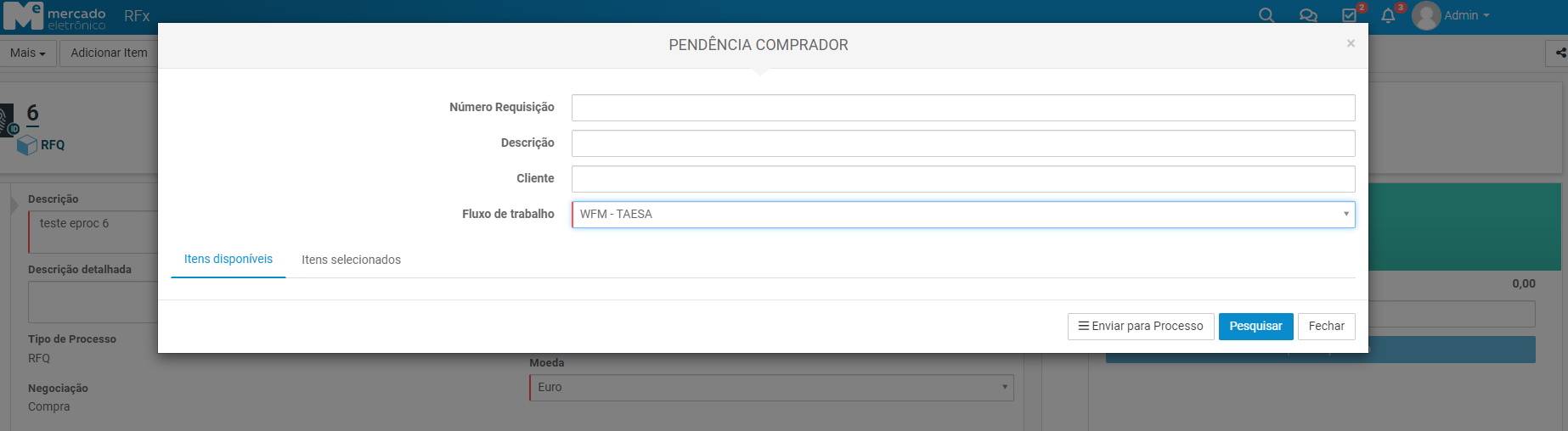
The search can be done by passing the following information to help filter the results: - Request Number - Description - Client - Workflow (Required)
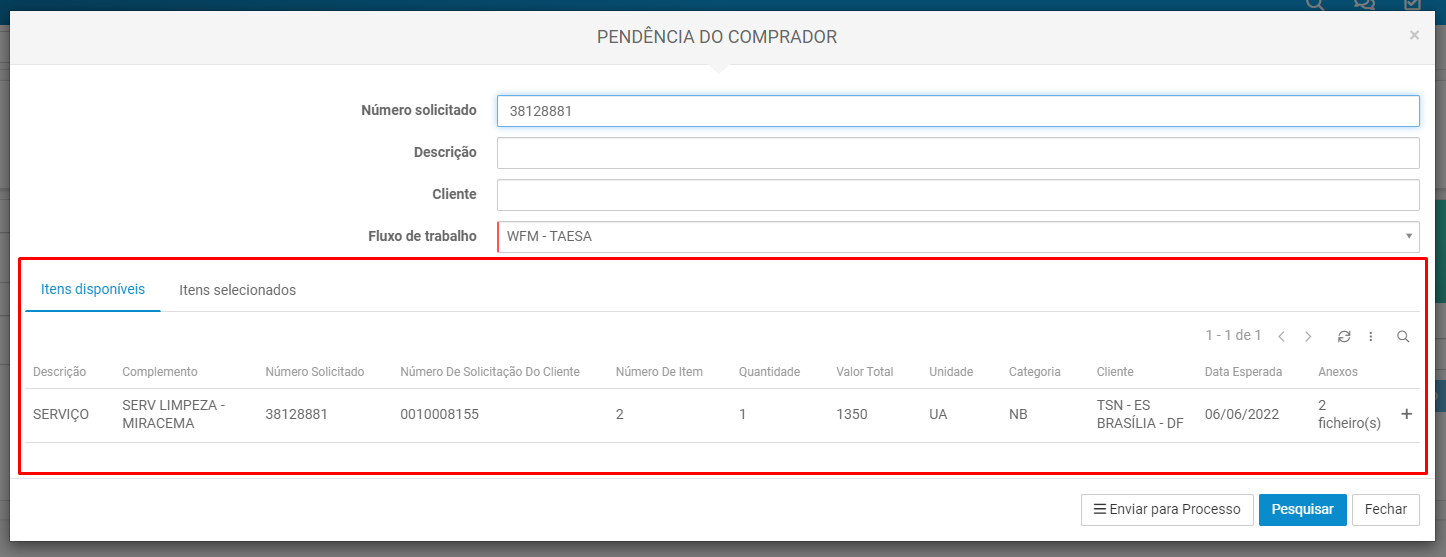
After filling the necessary fields, we must click on the Search button, if there are results, a list will be presented with the items matching the search.
Adding items
We can import items into the E-Proc RFX process by selecting them in the search dialog. To select a item click on the plus button.
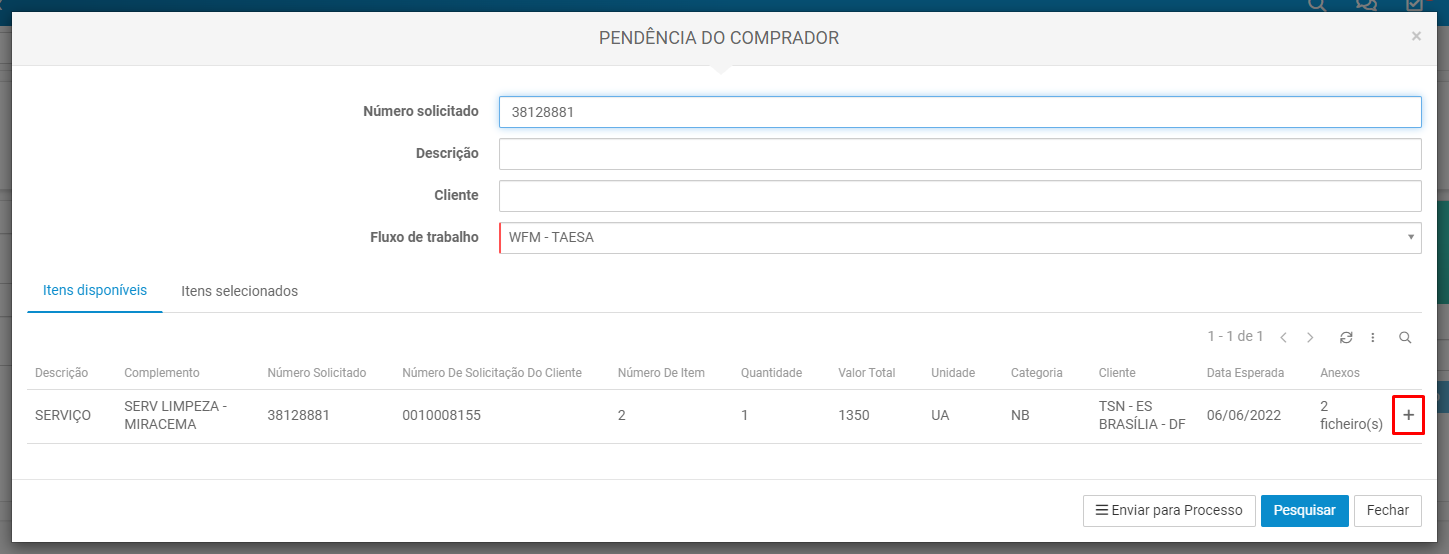
You can verify the selected items in the Selected Items
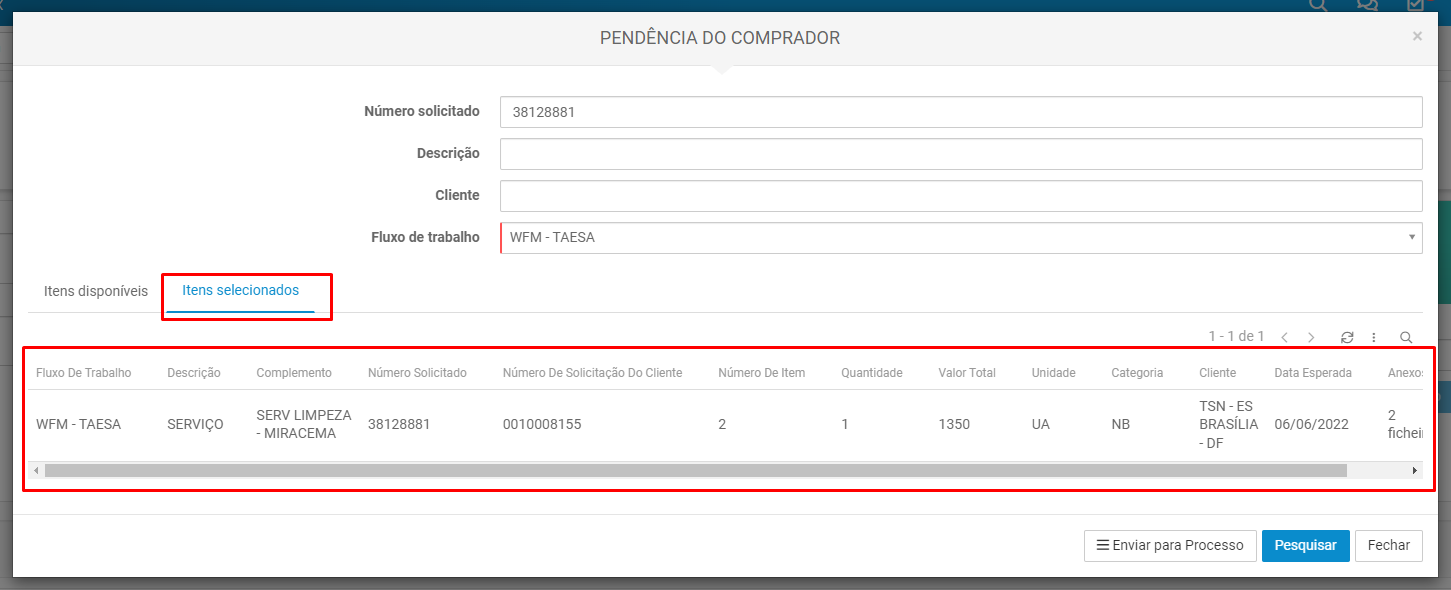
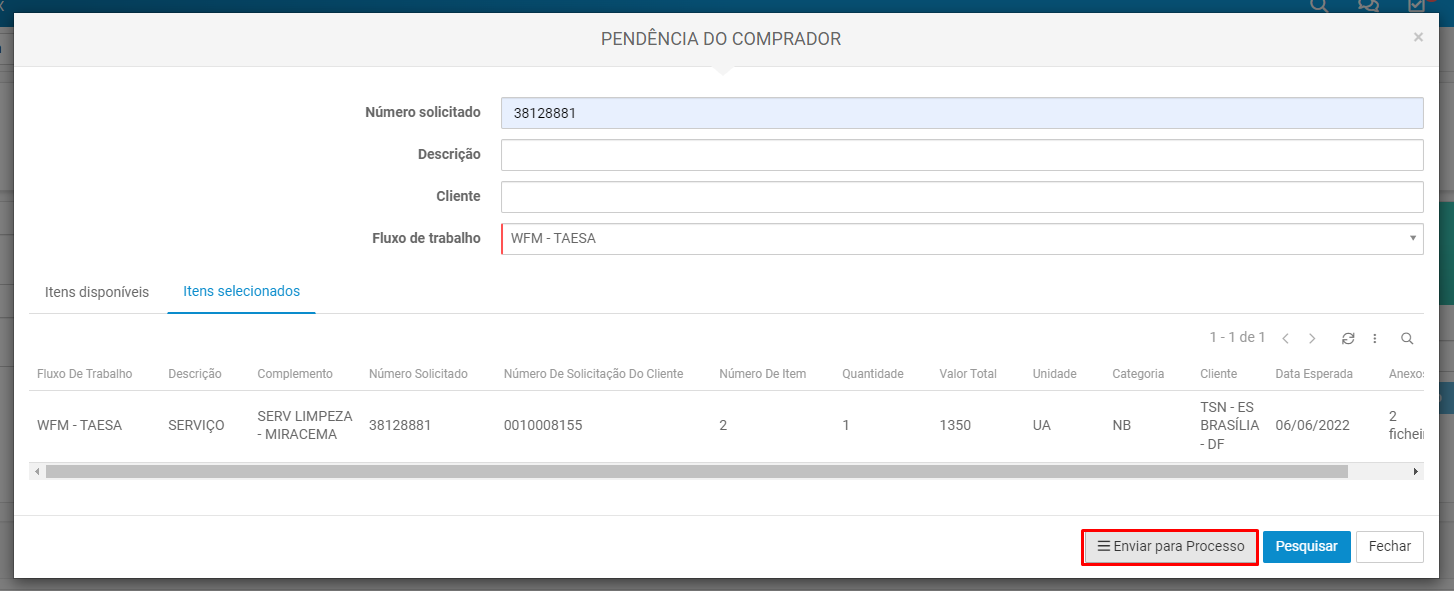
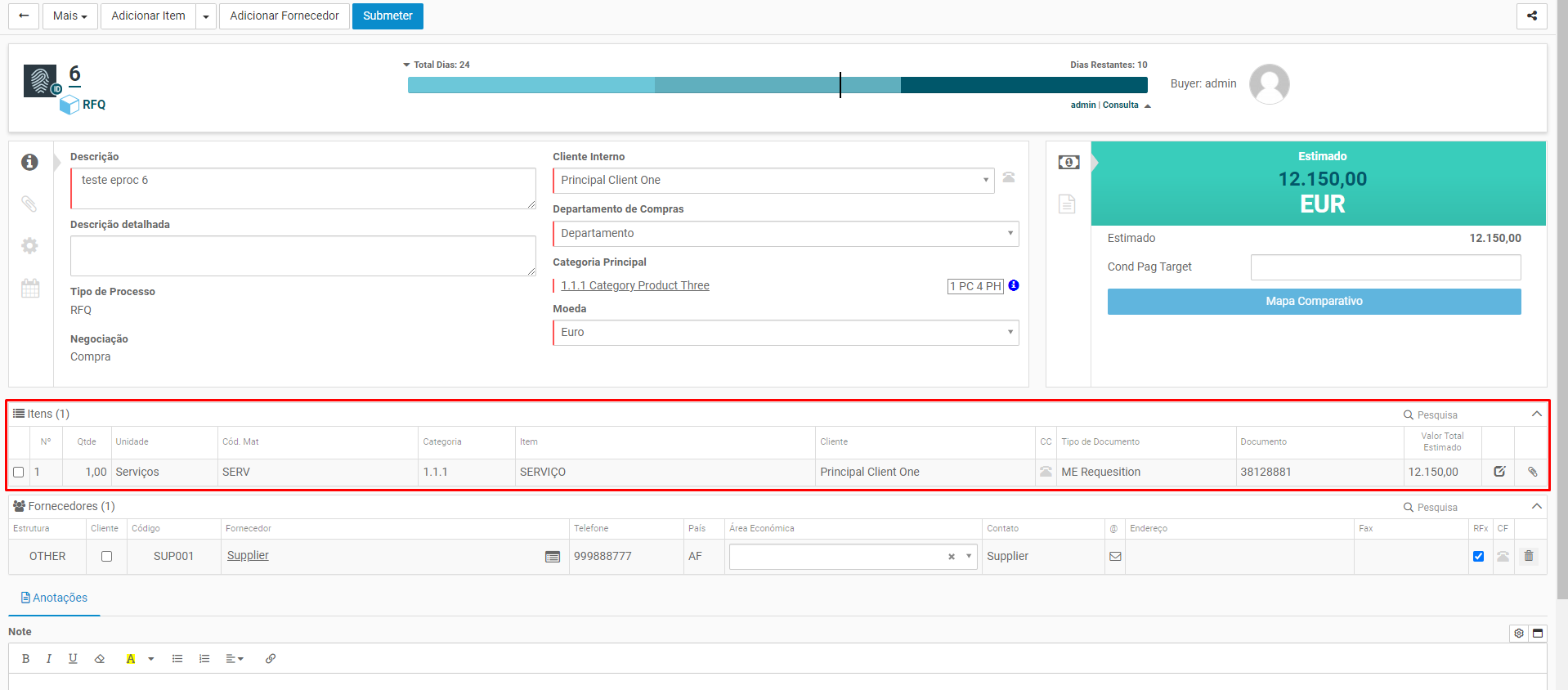
After all items selected, click on the Send to Process button to add these items on process and, if everything are configured right, the items will be added on the process.
Sub-items
since RFX 3.9
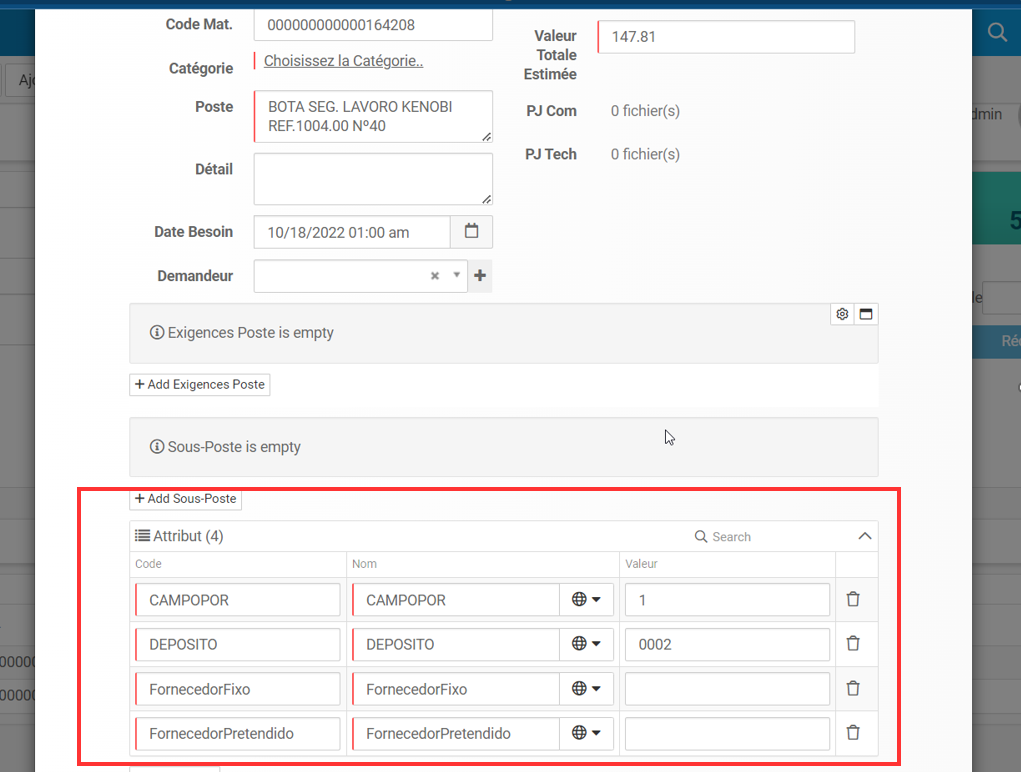
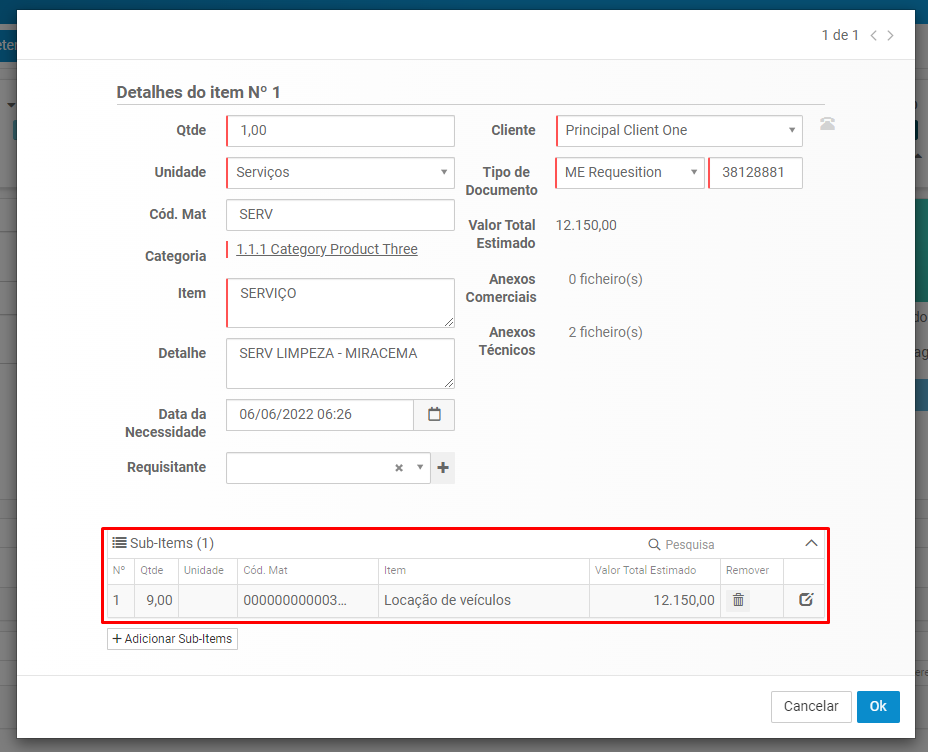
If an imported item has sub-items, they will also be imported as sub-items in the RFX and can be seen in the item's edit dialog.
Attributes
since RFX 3.9
If an imported item has attributes, they will also be imported as attributes in the RFX and can be seen in the item's edit dialog.